> ## Documentation Index
> Fetch the complete documentation index at: https://docs.chattermate.chat/llms.txt
> Use this file to discover all available pages before exploring further.
# Help Center
> Turn your knowledge base into a public, searchable help center — auto-generate FAQs, import from URLs or PDFs, customize the branding, publish articles, and serve it on your own domain with AI-powered search.
# Help Center
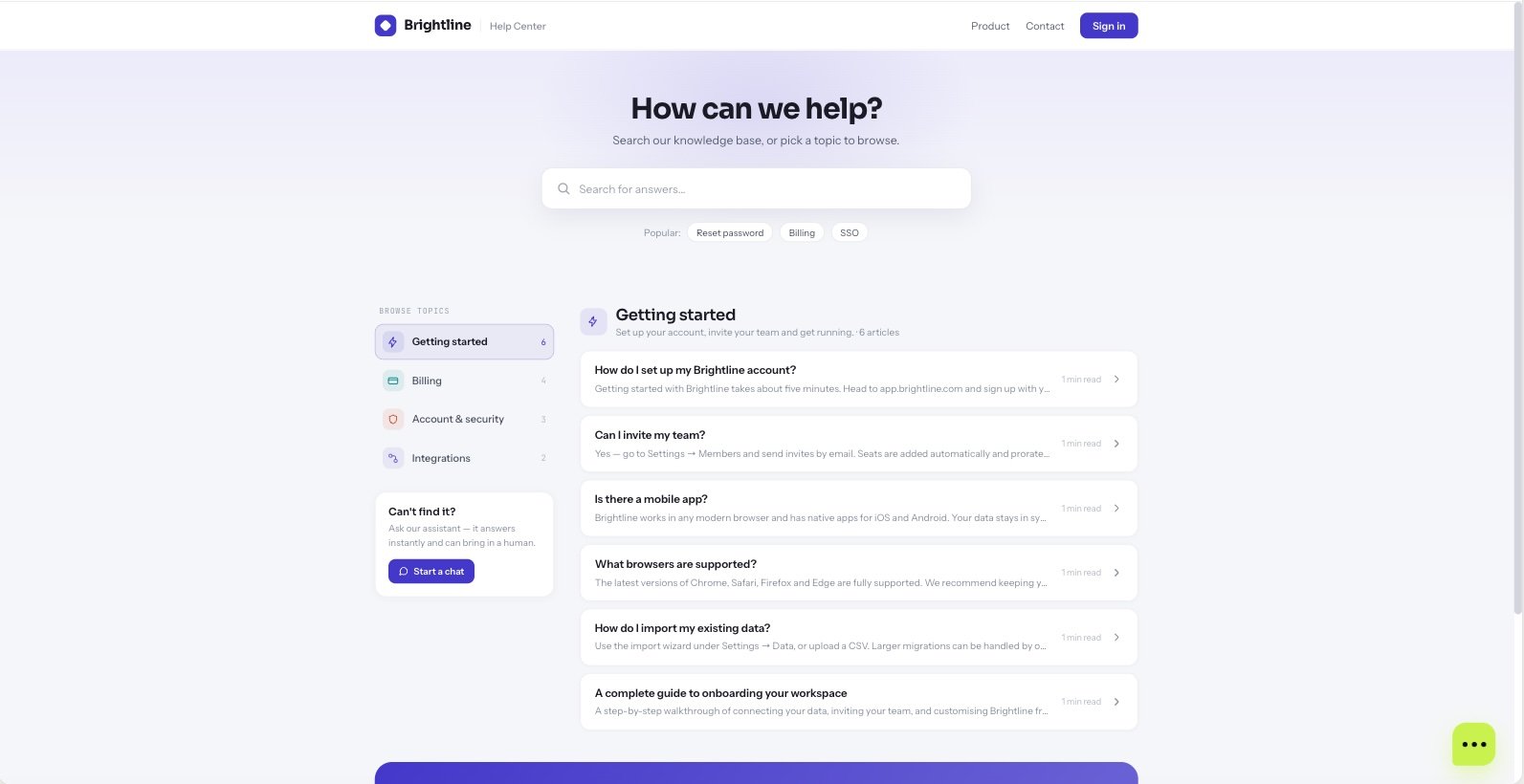
Turn what your agents already know into a public, searchable **help center**. ChatterMate
generates FAQs from your knowledge base (or imports them from a URL or PDF), lets you review and
publish them as articles, and serves a fast, SEO-friendly site with AI-powered search and an
optional embedded chat widget.
 ## Where to manage it
Open **FAQ Manager** in the dashboard. It has two tabs:
Generate, import, write, review, and publish your questions and answers.
Branding, logo, header links, AI search, the chat widget, and your custom domain.
The Help Center is a **Pro / Enterprise** feature. On the community edition it is fully open.
## Building your FAQs
## Where to manage it
Open **FAQ Manager** in the dashboard. It has two tabs:
Generate, import, write, review, and publish your questions and answers.
Branding, logo, header links, AI search, the chat widget, and your custom domain.
The Help Center is a **Pro / Enterprise** feature. On the community edition it is fully open.
## Building your FAQs
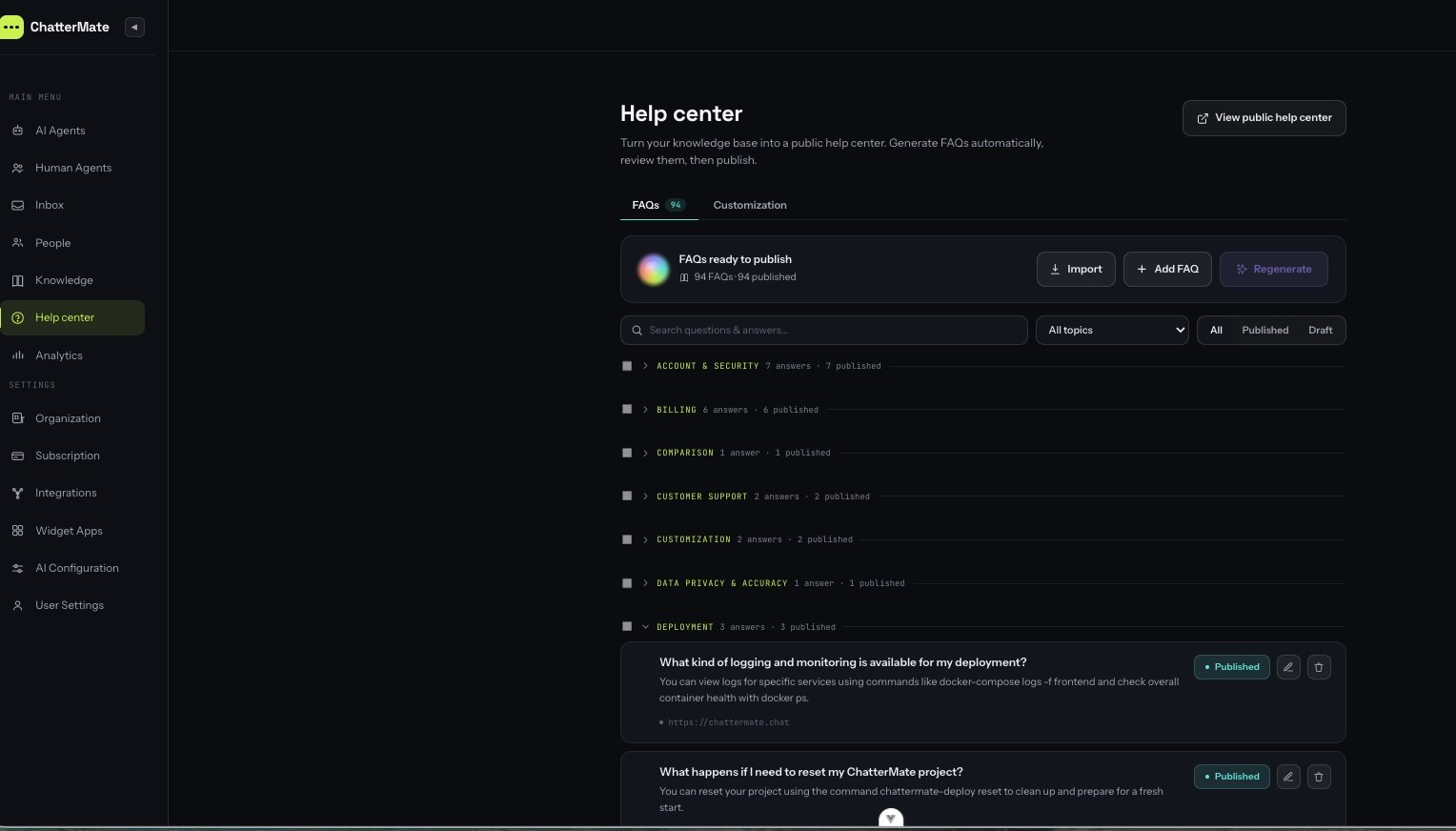 There are four ways to fill your help center, and they all land as **drafts** you review before
publishing:
Pick one or more knowledge sources and ChatterMate drafts grouped Q\&A from their content. You
choose which sources to use, and a credit estimate is shown before you start. Regenerating only
processes sources that don't already have FAQs.
Point at an existing help center or page. Two modes:
* **Q\&A** — AI extracts question/answer pairs (uses credits).
* **Articles** — crawls the linked articles and imports them as-is in Markdown (no AI, no credits), re-hosting their images.
Upload a PDF and ChatterMate extracts Q\&A pairs from its text.
Add a question and a Markdown answer yourself, with a rich editor and image uploads.
Imports and generation run in the **background** — you'll be notified when they finish. Then
review: edit answers (Markdown supported), organize categories, and **publish** the ones you want
live. Bulk-select to publish, unpublish, or delete many at once.
## Customize the appearance
There are four ways to fill your help center, and they all land as **drafts** you review before
publishing:
Pick one or more knowledge sources and ChatterMate drafts grouped Q\&A from their content. You
choose which sources to use, and a credit estimate is shown before you start. Regenerating only
processes sources that don't already have FAQs.
Point at an existing help center or page. Two modes:
* **Q\&A** — AI extracts question/answer pairs (uses credits).
* **Articles** — crawls the linked articles and imports them as-is in Markdown (no AI, no credits), re-hosting their images.
Upload a PDF and ChatterMate extracts Q\&A pairs from its text.
Add a question and a Markdown answer yourself, with a rich editor and image uploads.
Imports and generation run in the **background** — you'll be notified when they finish. Then
review: edit answers (Markdown supported), organize categories, and **publish** the ones you want
live. Bulk-select to publish, unpublish, or delete many at once.
## Customize the appearance
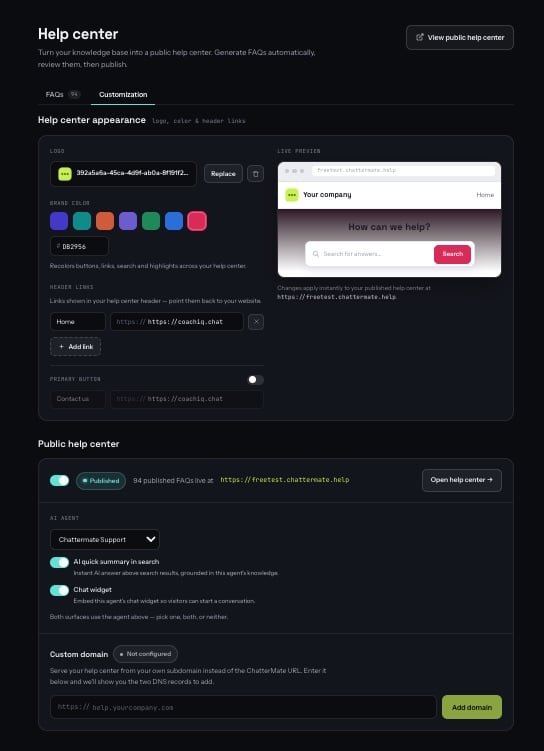 Under **Customization** you control how the public site looks and behaves:
* **Logo** and **brand color** — applied across buttons, links, search and highlights.
* **Title** and **description** — heading and SEO metadata.
* **Header links** — up to six nav links back to your website.
* **AI quick summary in search** — an instant AI answer above search results, grounded in your published FAQs.
* **Chat widget** — embed an agent's chat widget so visitors can start a conversation.
Changes apply instantly to your published site.
## The public site
Once enabled, your help center is live at `https://{your-slug}.help.chattermate.chat`. Visitors get:
* **Instant search** across your published FAQs, with an optional **AI answer** on top.
* **Browse by topic** — articles grouped by category.
* **Article pages** with clean, shareable URLs and a **"Was this helpful?"** vote on each one.
* The embedded **chat widget** when they need a human.
Everything is server-rendered for SEO, with a sitemap and per-article structured data.
## Custom domain
Serve the help center on your own domain (e.g. `help.acme.com`) instead of the default subdomain:
In **Customization → Custom domain**, enter your domain. ChatterMate shows the two DNS records to add.
At your DNS provider, add the **CNAME** (points your domain at ChatterMate) and the **TXT**
verification record shown in the dashboard.
Click **Verify domain**. Once DNS resolves, the certificate is provisioned automatically and your
help center goes live on your domain over HTTPS.
## Manage it from the CLI
Everything above (except knowledge-base generation) can be scripted with the
[ChatterMate CLI](/features/cli#help-center):
```bash theme={null}
# Create and publish an FAQ
chattermate help-center faq create --question "How do I reset my password?" \
--answer "Open **Settings → Security** and choose *Reset password*." --status published
# Import an existing help center as articles (no AI)
chattermate help-center import url https://help.acme.com --mode articles
# Brand the site and add your logo
chattermate help-center configure --title "Acme Help" --brand-color "#4338CA" --enable
chattermate help-center logo set ./logo.png
# Connect a custom domain and verify it
chattermate help-center domain set help.acme.com
chattermate help-center domain verify
```
## Next steps
Add the content your FAQs are generated from.
Automate FAQ and help-center management from your terminal or CI.
Under **Customization** you control how the public site looks and behaves:
* **Logo** and **brand color** — applied across buttons, links, search and highlights.
* **Title** and **description** — heading and SEO metadata.
* **Header links** — up to six nav links back to your website.
* **AI quick summary in search** — an instant AI answer above search results, grounded in your published FAQs.
* **Chat widget** — embed an agent's chat widget so visitors can start a conversation.
Changes apply instantly to your published site.
## The public site
Once enabled, your help center is live at `https://{your-slug}.help.chattermate.chat`. Visitors get:
* **Instant search** across your published FAQs, with an optional **AI answer** on top.
* **Browse by topic** — articles grouped by category.
* **Article pages** with clean, shareable URLs and a **"Was this helpful?"** vote on each one.
* The embedded **chat widget** when they need a human.
Everything is server-rendered for SEO, with a sitemap and per-article structured data.
## Custom domain
Serve the help center on your own domain (e.g. `help.acme.com`) instead of the default subdomain:
In **Customization → Custom domain**, enter your domain. ChatterMate shows the two DNS records to add.
At your DNS provider, add the **CNAME** (points your domain at ChatterMate) and the **TXT**
verification record shown in the dashboard.
Click **Verify domain**. Once DNS resolves, the certificate is provisioned automatically and your
help center goes live on your domain over HTTPS.
## Manage it from the CLI
Everything above (except knowledge-base generation) can be scripted with the
[ChatterMate CLI](/features/cli#help-center):
```bash theme={null}
# Create and publish an FAQ
chattermate help-center faq create --question "How do I reset my password?" \
--answer "Open **Settings → Security** and choose *Reset password*." --status published
# Import an existing help center as articles (no AI)
chattermate help-center import url https://help.acme.com --mode articles
# Brand the site and add your logo
chattermate help-center configure --title "Acme Help" --brand-color "#4338CA" --enable
chattermate help-center logo set ./logo.png
# Connect a custom domain and verify it
chattermate help-center domain set help.acme.com
chattermate help-center domain verify
```
## Next steps
Add the content your FAQs are generated from.
Automate FAQ and help-center management from your terminal or CI.