> ## Documentation Index
> Fetch the complete documentation index at: https://docs.chattermate.chat/llms.txt
> Use this file to discover all available pages before exploring further.
# Human Agents
> Manage human agents in ChatterMate by adding users, assigning roles, organizing teams into groups, and routing chats so people and AI handle support together.
# Human Agents Management
Configure and manage human agents to provide seamless customer support alongside AI agents.
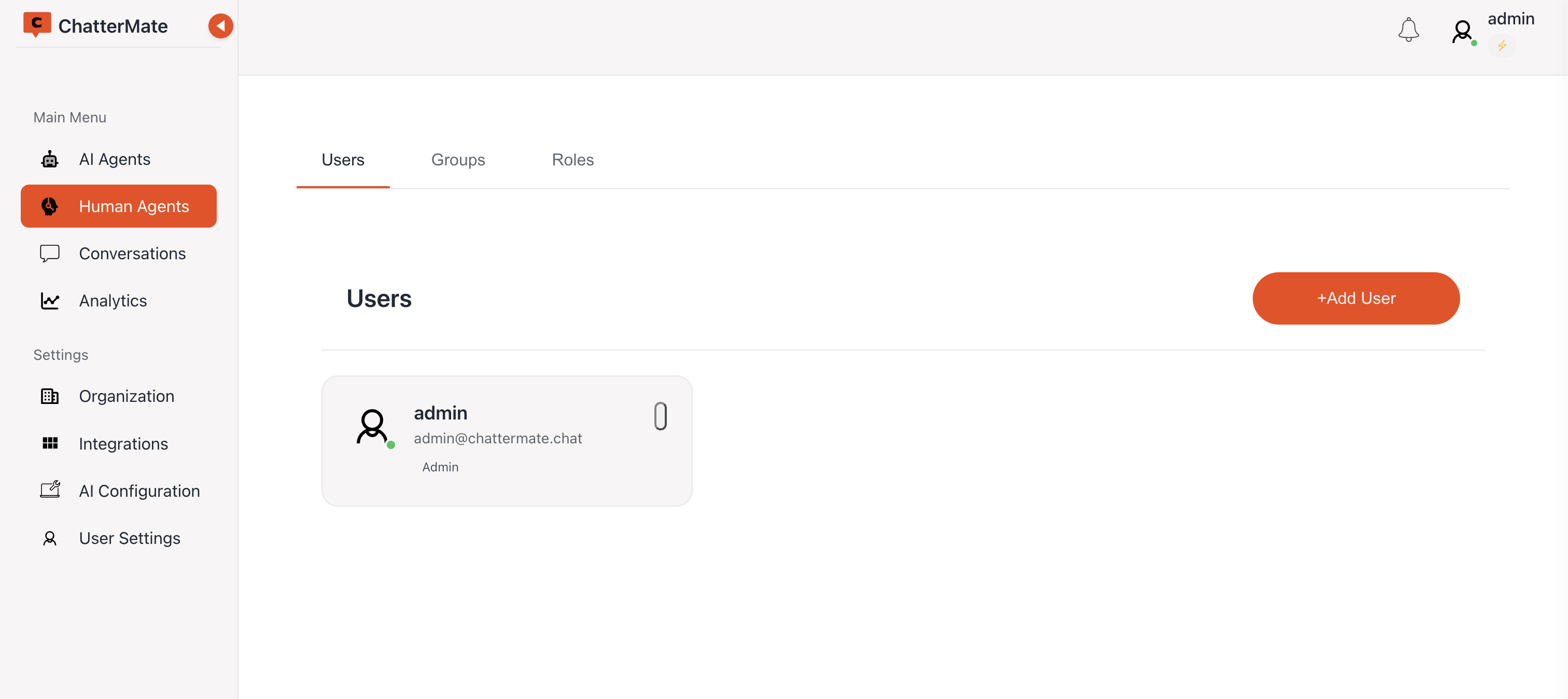 ## User Management
### Adding Users
1. Click "+Add User" in the Users tab
2. Fill in user details:
* Full Name
* Email Address
* Role Selection
* Active Status
* Password (for new users)
### Password Security
* Minimum 8 characters required
* Must include uppercase and lowercase letters
* Must include numbers and special characters
* Real-time password strength indicator
* Secure password validation
### User Status Options
* Active: Full system access enabled
* Inactive: Access temporarily suspended
* Status can be changed anytime
## Groups Management
### Creating Support Groups
1. Navigate to Groups tab
2. Click "+Add Group"
3. Set group name and description
4. Configure group settings
### Group Features
Customize group settings and details
Control group membership
### Member Management
* Add or remove group members
* View member information
* Manage member roles
* Track member status
Next: Learn how to manage roles and permissions
## User Management
### Adding Users
1. Click "+Add User" in the Users tab
2. Fill in user details:
* Full Name
* Email Address
* Role Selection
* Active Status
* Password (for new users)
### Password Security
* Minimum 8 characters required
* Must include uppercase and lowercase letters
* Must include numbers and special characters
* Real-time password strength indicator
* Secure password validation
### User Status Options
* Active: Full system access enabled
* Inactive: Access temporarily suspended
* Status can be changed anytime
## Groups Management
### Creating Support Groups
1. Navigate to Groups tab
2. Click "+Add Group"
3. Set group name and description
4. Configure group settings
### Group Features
Customize group settings and details
Control group membership
### Member Management
* Add or remove group members
* View member information
* Manage member roles
* Track member status
Next: Learn how to manage roles and permissions