> ## Documentation Index
> Fetch the complete documentation index at: https://docs.chattermate.chat/llms.txt
> Use this file to discover all available pages before exploring further.
# Knowledge Base
> Train ChatterMate AI agents on your own content — crawl websites and sitemaps, upload PDFs, or paste text — then review, edit and re-embed every indexed page.
# Knowledge Base
Train your AI agents on your own content so they answer accurately and in context. ChatterMate crawls websites and sitemaps, ingests PDFs and pasted text, and lets you review, edit, and re-embed every page it learned from.
 ## Where to manage knowledge
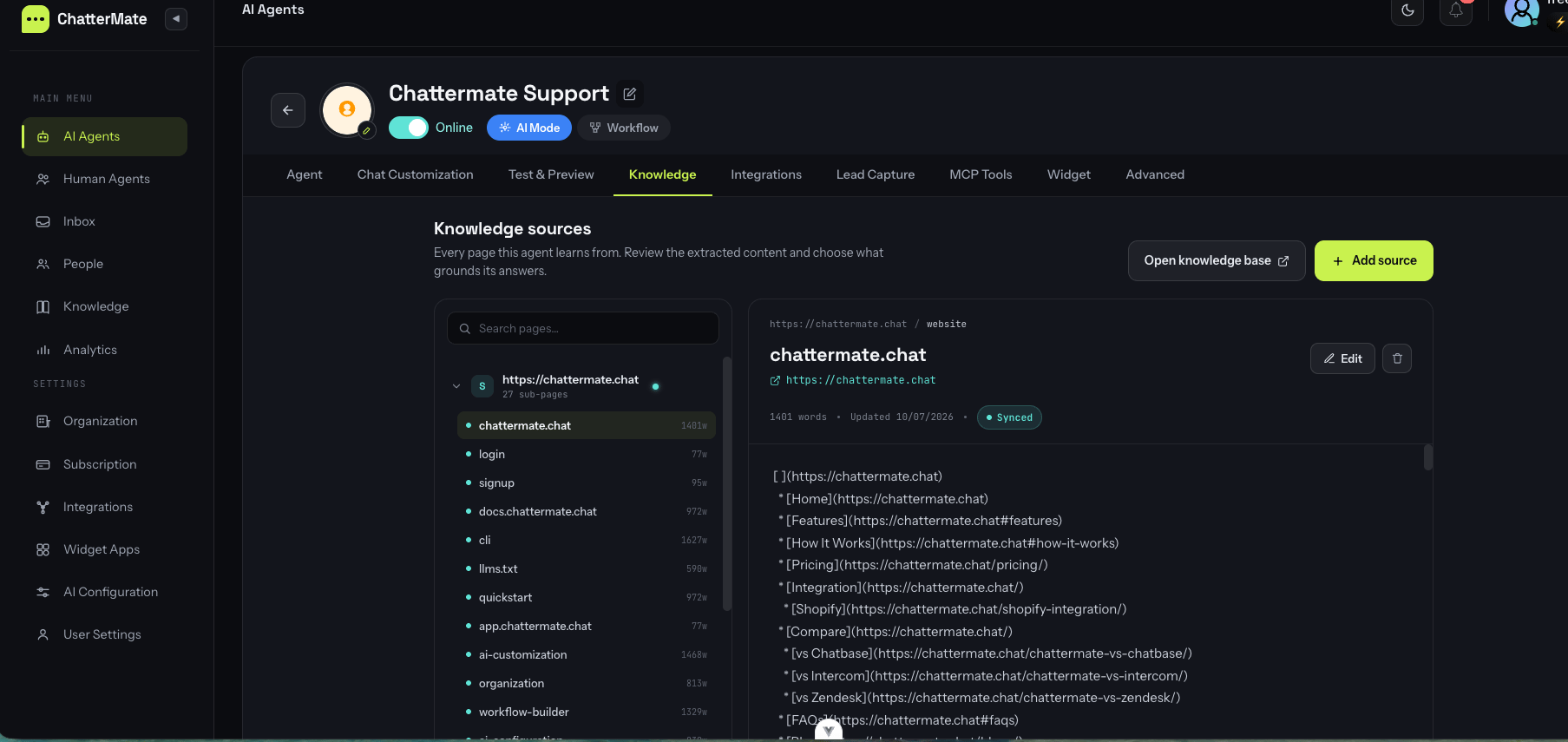
There are two places to work with knowledge, both backed by the same content:
The sources a single agent learns from. Add, review, and edit the content that grounds that agent's answers.
A dedicated page (in the main menu) to manage every source across your whole organization, with plan-usage meters.
The layout is a **master–detail explorer**: sources (and their crawled sub-pages) on the left, the selected page's extracted content on the right.
## Adding a source
Click **Add source** to open the source picker, choose a type, and configure it. Crawling happens in the background — you'll be notified when indexing finishes.
## Where to manage knowledge
There are two places to work with knowledge, both backed by the same content:
The sources a single agent learns from. Add, review, and edit the content that grounds that agent's answers.
A dedicated page (in the main menu) to manage every source across your whole organization, with plan-usage meters.
The layout is a **master–detail explorer**: sources (and their crawled sub-pages) on the left, the selected page's extracted content on the right.
## Adding a source
Click **Add source** to open the source picker, choose a type, and configure it. Crawling happens in the background — you'll be notified when indexing finishes.
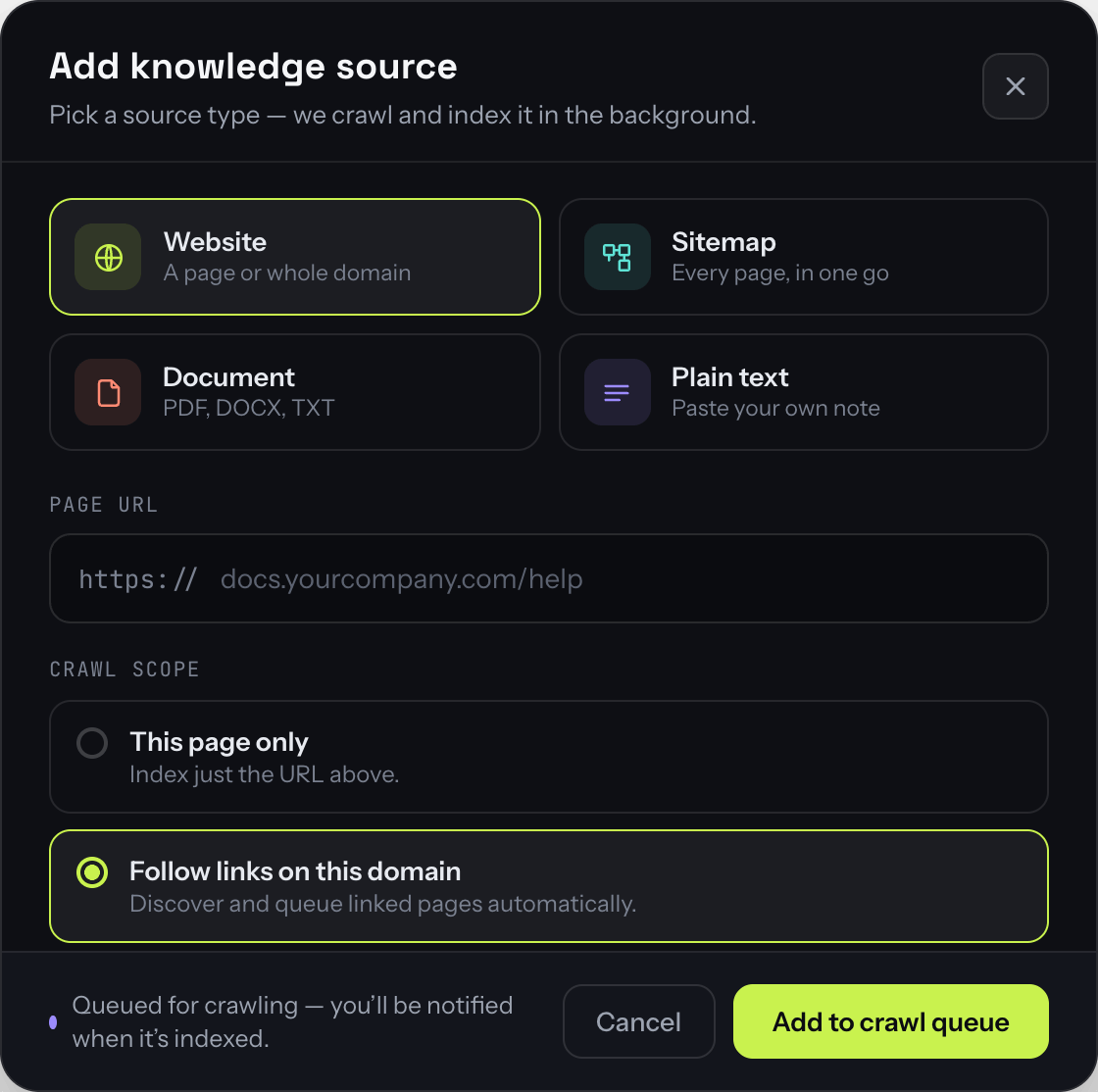 A single page or a whole site. Choose the **crawl scope**: *This page only*, or *Follow links on this domain* to discover and queue linked pages.
Point at a `sitemap.xml` and ChatterMate indexes every page it lists (including `sitemap-index` files) as one source.
Upload a PDF (up to 25 MB). Text is extracted, split into sections, and indexed; scanned PDFs are run through OCR.
Paste a title and content directly. Indexed immediately — no crawling needed.
Each website, sitemap, PDF, or text entry counts as **one knowledge source**. The number of pages a crawl stores per source is capped by your plan's sub-pages limit.
## Reviewing and editing pages
Expand a source to see its crawled **sub-pages**, then select one to read exactly what the AI learned from it.
Fix or refine a page's extracted text. Saving re-embeds it immediately, so answers stay current.
Manually add a page to a source with a title, content, and an optional source URL — useful for content a crawler can't reach.
Remove an individual page or an entire source from the knowledge base.
Jump to the original page URL to compare against the live content.
## Source status
Each source shows its live status while it is being indexed:
Queued for crawling. It appears in the list immediately and updates as work starts.
Pages are being fetched, extracted, and embedded. Progress updates as each page completes.
Successfully indexed and available to the agent.
Something prevented indexing. The source shows the reason so you can act on it.
**Bot-protected sites.** If a site's bot protection (e.g. a Cloudflare / WordPress.com "Checking your browser" page) blocks automated crawling, the source fails with a clear message asking you to add the content manually — upload a PDF or paste the text instead.
## Sharing knowledge between agents
A source can ground more than one agent. From the dedicated Knowledge base page you manage every source in one place, and the same source can be linked to multiple agents.
### Benefits
* Maintain consistency across different agent types
* Avoid duplicate content and processing
* Central management — updates propagate to every linked agent
### Use cases
* Company policies shared across all agents
* Product docs shared by sales and support
* Technical specs for multiple specialist agents
When you edit a page, it is re-embedded and every agent that uses that source immediately benefits — no manual reprocessing needed.
## Notifications
When Firebase Cloud Messaging is enabled, ChatterMate notifies you when a source finishes processing:
```json Success theme={null}
{
"title": "Knowledge Processing Complete",
"body": "Your knowledge source '[name]' has been successfully processed",
"type": "knowledge_processed"
}
```
```json Error theme={null}
{
"title": "Knowledge Processing Failed",
"body": "Failed to process '[name]'. Click for details",
"type": "knowledge_failed"
}
```
## Best practices
1. **Prefer a sitemap** when a site has one — it indexes exactly the pages you want, without following stray links.
2. **Use crawl scope** — pick *This page only* for a single article, *Follow links* to capture a whole docs section.
3. **Review after indexing** — open a few pages to confirm the extracted text is clean; edit anything that isn't.
4. **Fill gaps manually** — paste content or add a sub-page for anything a crawler can't reach (paywalled, gated, or bot-protected pages).
5. **Keep it current** — edit pages when your product changes; re-embedding is instant.
## Limitations
* PDF size limit: 25 MB per file
* Pages crawled per source are capped by your plan's sub-pages limit
* URLs must be publicly reachable and return extractable text (no scanned-only content without OCR)
* Sites behind strict bot protection may not be crawlable — add that content manually
## What's Next?
After adding knowledge sources:
1. Test AI responses with the new knowledge
2. Review and edit extracted pages for accuracy
3. Keep content up to date as your product evolves
Next: Learn how to test your AI agent's knowledge
A single page or a whole site. Choose the **crawl scope**: *This page only*, or *Follow links on this domain* to discover and queue linked pages.
Point at a `sitemap.xml` and ChatterMate indexes every page it lists (including `sitemap-index` files) as one source.
Upload a PDF (up to 25 MB). Text is extracted, split into sections, and indexed; scanned PDFs are run through OCR.
Paste a title and content directly. Indexed immediately — no crawling needed.
Each website, sitemap, PDF, or text entry counts as **one knowledge source**. The number of pages a crawl stores per source is capped by your plan's sub-pages limit.
## Reviewing and editing pages
Expand a source to see its crawled **sub-pages**, then select one to read exactly what the AI learned from it.
Fix or refine a page's extracted text. Saving re-embeds it immediately, so answers stay current.
Manually add a page to a source with a title, content, and an optional source URL — useful for content a crawler can't reach.
Remove an individual page or an entire source from the knowledge base.
Jump to the original page URL to compare against the live content.
## Source status
Each source shows its live status while it is being indexed:
Queued for crawling. It appears in the list immediately and updates as work starts.
Pages are being fetched, extracted, and embedded. Progress updates as each page completes.
Successfully indexed and available to the agent.
Something prevented indexing. The source shows the reason so you can act on it.
**Bot-protected sites.** If a site's bot protection (e.g. a Cloudflare / WordPress.com "Checking your browser" page) blocks automated crawling, the source fails with a clear message asking you to add the content manually — upload a PDF or paste the text instead.
## Sharing knowledge between agents
A source can ground more than one agent. From the dedicated Knowledge base page you manage every source in one place, and the same source can be linked to multiple agents.
### Benefits
* Maintain consistency across different agent types
* Avoid duplicate content and processing
* Central management — updates propagate to every linked agent
### Use cases
* Company policies shared across all agents
* Product docs shared by sales and support
* Technical specs for multiple specialist agents
When you edit a page, it is re-embedded and every agent that uses that source immediately benefits — no manual reprocessing needed.
## Notifications
When Firebase Cloud Messaging is enabled, ChatterMate notifies you when a source finishes processing:
```json Success theme={null}
{
"title": "Knowledge Processing Complete",
"body": "Your knowledge source '[name]' has been successfully processed",
"type": "knowledge_processed"
}
```
```json Error theme={null}
{
"title": "Knowledge Processing Failed",
"body": "Failed to process '[name]'. Click for details",
"type": "knowledge_failed"
}
```
## Best practices
1. **Prefer a sitemap** when a site has one — it indexes exactly the pages you want, without following stray links.
2. **Use crawl scope** — pick *This page only* for a single article, *Follow links* to capture a whole docs section.
3. **Review after indexing** — open a few pages to confirm the extracted text is clean; edit anything that isn't.
4. **Fill gaps manually** — paste content or add a sub-page for anything a crawler can't reach (paywalled, gated, or bot-protected pages).
5. **Keep it current** — edit pages when your product changes; re-embedding is instant.
## Limitations
* PDF size limit: 25 MB per file
* Pages crawled per source are capped by your plan's sub-pages limit
* URLs must be publicly reachable and return extractable text (no scanned-only content without OCR)
* Sites behind strict bot protection may not be crawlable — add that content manually
## What's Next?
After adding knowledge sources:
1. Test AI responses with the new knowledge
2. Review and edit extracted pages for accuracy
3. Keep content up to date as your product evolves
Next: Learn how to test your AI agent's knowledge