> ## Documentation Index
> Fetch the complete documentation index at: https://docs.chattermate.chat/llms.txt
> Use this file to discover all available pages before exploring further.
# MCP Tools
> Extend ChatterMate AI agents with external tools via the Model Context Protocol (MCP), connecting file systems, APIs, and databases to act beyond text replies.
# MCP Tools
Enhance your AI agents with powerful external tools and services using the Model Context Protocol (MCP). Connect to file systems, APIs, databases, and more to extend your agent's capabilities beyond text-based responses.
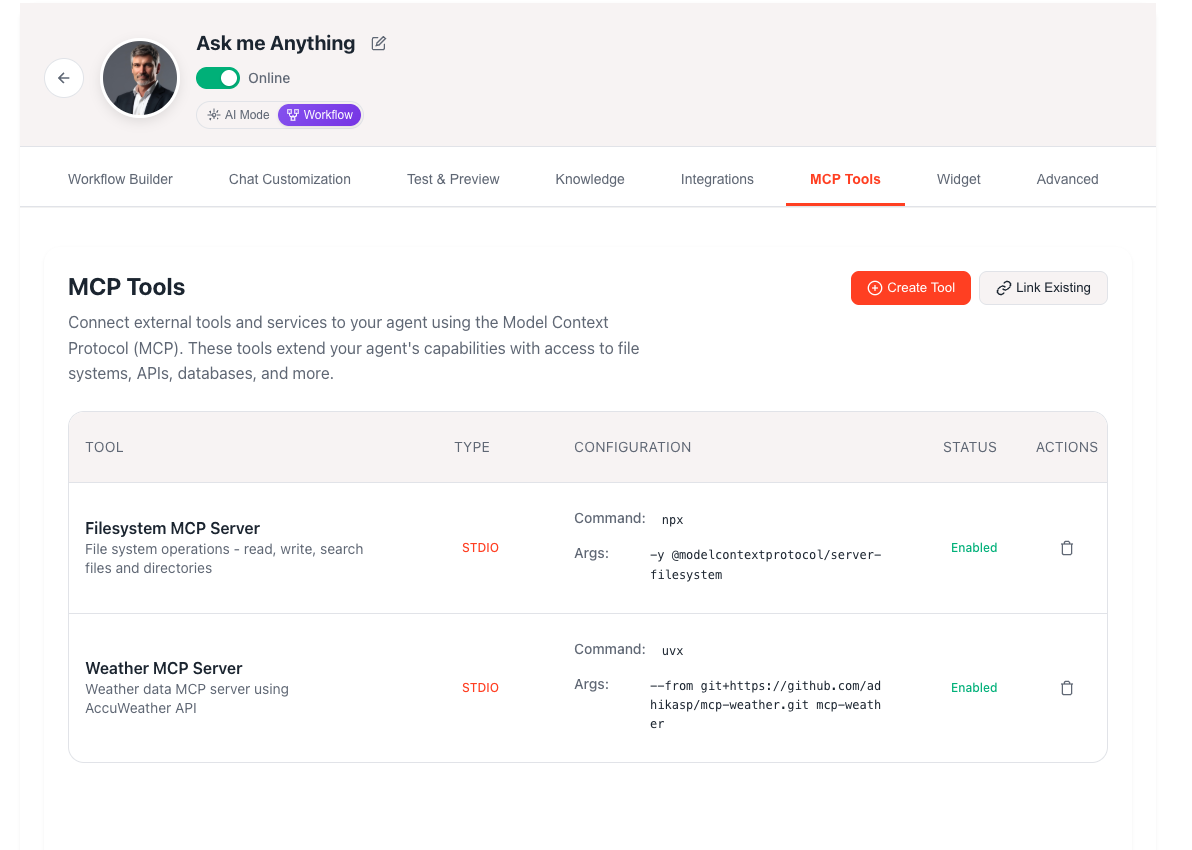 ## What are MCP Tools?
The Model Context Protocol (MCP) is a standardized way to connect AI agents to external tools and services. MCP tools enable your AI agents to:
Read, write, and manage files and directories
Connect to external APIs and web services
Query and interact with databases
Manage version control repositories
Search the internet for real-time information
Access weather and environmental data
## Transport Types
MCP tools support three different transport protocols for communication:
* **Best for**: Local command-line tools and scripts
* **Communication**: Process spawning with stdin/stdout
* **Use cases**: File system access, local Git operations, CLI tools
* **Configuration**: Command and arguments
* **Best for**: Real-time streaming applications
* **Communication**: HTTP with server-sent events
* **Use cases**: Live data feeds, monitoring services
* **Configuration**: URL, headers, and timeout settings
* **Best for**: Traditional REST APIs and web services
* **Communication**: Request/response over HTTP
* **Use cases**: API integrations, web services
* **Configuration**: URL, headers, and connection settings
## Managing MCP Tools
### Adding MCP Tools
ChatterMate provides two ways to add MCP tools to your agents:
Configure new MCP servers from scratch or use presets
Connect to MCP tools already configured in your organization
### Tool Sharing
MCP tools can be shared across multiple agents within your organization:
* **Organization-wide**: Tools created by any team member are available to all agents
* **Reusable Configuration**: Set up once, use across multiple agents
* **Centralized Management**: Update tool configuration in one place
* **Access Control**: Only organization members can access shared tools
### Use Cases for Tool Sharing
* Common API integrations across support and sales agents
* Shared file system access for documentation
* Organization-wide weather or search capabilities
* Centralized database connections
When you update a shared MCP tool configuration, all agents using that tool will automatically use the updated settings.
## Popular MCP Tool Presets
ChatterMate includes pre-configured templates for common use cases:
### File System Access
```json theme={null}
{
"name": "File System",
"description": "Access and manage files and directories",
"transport_type": "stdio",
"command": "uvx",
"args": ["@modelcontextprotocol/server-filesystem"],
"env_vars": {
"ALLOWED_DIRECTORIES": "/path/to/allowed/directory"
}
}
```
### Git Repository Management
```json theme={null}
{
"name": "Git Repository",
"description": "Interact with Git repositories",
"transport_type": "stdio",
"command": "uvx",
"args": ["@modelcontextprotocol/server-git"],
"env_vars": {}
}
```
### Web Search Integration
```json theme={null}
{
"name": "Web Search",
"description": "Search the web using Brave Search API",
"transport_type": "stdio",
"command": "uvx",
"args": ["@modelcontextprotocol/server-brave-search"],
"env_vars": {
"BRAVE_API_KEY": "your-api-key"
}
}
```
### Weather Information
```json theme={null}
{
"name": "Weather",
"description": "Get weather information",
"transport_type": "stdio",
"command": "uvx",
"args": ["@modelcontextprotocol/server-weather"],
"env_vars": {
"WEATHER_API_KEY": "your-api-key"
}
}
```
## Configuration Guide
### STDIO Transport Configuration
For command-line tools and local services:
#### Required Fields
* **Command**: The executable command (e.g., `npx`, `uvx`, `node`)
* **Args**: Array of command arguments
#### Optional Fields
* **Environment Variables**: Key-value pairs for environment configuration
* **Working Directory**: Set the working directory for the process
#### Example Configuration
```json theme={null}
{
"command": "npx",
"args": ["-y", "@modelcontextprotocol/server-filesystem"],
"env_vars": {
"ALLOWED_DIRECTORIES": "/home/user/documents,/home/user/projects",
"READONLY": "false"
}
}
```
### SSE Transport Configuration
For server-sent events and streaming data:
#### Required Fields
* **URL**: The SSE endpoint URL
#### Optional Fields
* **Headers**: HTTP headers for authentication or configuration
* **SSE Read Timeout**: Maximum time to wait for events (default: 60 seconds)
* **Timeout**: Connection timeout (default: 30 seconds)
#### Example Configuration
```json theme={null}
{
"url": "https://api.example.com/sse/events",
"headers": {
"Authorization": "Bearer your-token",
"Accept": "text/event-stream"
},
"sse_read_timeout": 120,
"timeout": 45
}
```
### HTTP Transport Configuration
For REST APIs and web services:
#### Required Fields
* **URL**: The API base URL
#### Optional Fields
* **Headers**: HTTP headers for authentication or content type
* **Timeout**: Request timeout (default: 30 seconds)
* **Terminate on Close**: Whether to terminate the connection when the chat session ends
#### Example Configuration
```json theme={null}
{
"url": "https://api.example.com",
"headers": {
"Authorization": "Bearer your-api-key",
"Content-Type": "application/json"
},
"timeout": 60,
"terminate_on_close": true
}
```
## Security Considerations
### Environment Variables
* Store sensitive data like API keys in environment variables
* Never hardcode credentials in configuration
* Use secure key management practices
### Access Control
* Limit file system access to specific directories
* Use read-only permissions when possible
* Validate API endpoints and permissions
### Network Security
* Use HTTPS for all external connections
* Validate SSL certificates
* Configure appropriate timeouts
MCP tools run with the same permissions as your application. Always validate tool configurations and limit access to sensitive resources.
## Tool Status Management
### Tool States
* Tool is active and available to the agent
* Will be loaded when the agent starts
* Can be used in conversations
* Tool configuration is saved but not active
* Will not be loaded by the agent
* Can be re-enabled without reconfiguration
* Tool failed to initialize or connect
* Check configuration and credentials
* Review logs for detailed error information
### Troubleshooting
Common issues and solutions:
1. **Connection Timeouts**
* Increase timeout values in configuration
* Check network connectivity
* Verify service availability
2. **Authentication Errors**
* Validate API keys and credentials
* Check header configuration
* Ensure proper permissions
3. **Command Not Found (STDIO)**
* Verify command is installed and in PATH
* Check argument syntax
* Test command manually
## Best Practices
### Tool Configuration
1. **Use Environment Variables** for sensitive data
2. **Test Locally** before deploying to agents
3. **Set Appropriate Timeouts** to prevent hanging
4. **Document Tool Purpose** in descriptions
5. **Use Descriptive Names** for easy identification
### Performance Optimization
1. **Enable Only Needed Tools** to reduce startup time
2. **Configure Reasonable Timeouts** to prevent delays
3. **Monitor Tool Usage** and performance
4. **Cache Results** when possible
### Security Guidelines
1. **Principle of Least Privilege** - grant minimal necessary access
2. **Regular Credential Rotation** for API keys
3. **Audit Tool Access** and usage patterns
4. **Secure Configuration Storage** for sensitive settings
## Monitoring and Debugging
### Tool Logs
* Access tool execution logs through the dashboard
* Monitor connection status and errors
* Track tool usage and performance metrics
### Debug Mode
* Enable verbose logging for troubleshooting
* Test tool connections independently
* Validate configuration parameters
### Performance Metrics
* Track tool response times
* Monitor success/failure rates
* Analyze usage patterns
## Limitations
* Maximum 10 MCP tools per agent
* STDIO tools require server-side command availability
* Network-based tools depend on external service reliability
* Some tools may require specific software dependencies
* Tool execution timeout maximum: 300 seconds
## Integration Examples
### Customer Support with File Access
```json theme={null}
{
"name": "Support Documents",
"description": "Access customer support documentation",
"transport_type": "stdio",
"command": "uvx",
"args": ["@modelcontextprotocol/server-filesystem"],
"env_vars": {
"ALLOWED_DIRECTORIES": "/var/www/support-docs",
"READONLY": "true"
}
}
```
### Sales Agent with CRM Integration
```json theme={null}
{
"name": "CRM API",
"description": "Customer relationship management integration",
"transport_type": "http",
"url": "https://api.salesforce.com",
"headers": {
"Authorization": "Bearer sf_token",
"Content-Type": "application/json"
}
}
```
### Technical Support with Git Access
```json theme={null}
{
"name": "Code Repository",
"description": "Access to technical documentation repository",
"transport_type": "stdio",
"command": "uvx",
"args": ["@modelcontextprotocol/server-git"],
"env_vars": {
"GIT_REPO_PATH": "/opt/repositories/tech-docs"
}
}
```
## What's Next?
After configuring MCP tools:
1. Test tool functionality with your agent
2. Monitor tool performance and usage
3. Configure additional tools as needed
4. Review security and access permissions
Next: Learn how to test your agent with MCP tools
Back: Configure your AI agent settings
## What are MCP Tools?
The Model Context Protocol (MCP) is a standardized way to connect AI agents to external tools and services. MCP tools enable your AI agents to:
Read, write, and manage files and directories
Connect to external APIs and web services
Query and interact with databases
Manage version control repositories
Search the internet for real-time information
Access weather and environmental data
## Transport Types
MCP tools support three different transport protocols for communication:
* **Best for**: Local command-line tools and scripts
* **Communication**: Process spawning with stdin/stdout
* **Use cases**: File system access, local Git operations, CLI tools
* **Configuration**: Command and arguments
* **Best for**: Real-time streaming applications
* **Communication**: HTTP with server-sent events
* **Use cases**: Live data feeds, monitoring services
* **Configuration**: URL, headers, and timeout settings
* **Best for**: Traditional REST APIs and web services
* **Communication**: Request/response over HTTP
* **Use cases**: API integrations, web services
* **Configuration**: URL, headers, and connection settings
## Managing MCP Tools
### Adding MCP Tools
ChatterMate provides two ways to add MCP tools to your agents:
Configure new MCP servers from scratch or use presets
Connect to MCP tools already configured in your organization
### Tool Sharing
MCP tools can be shared across multiple agents within your organization:
* **Organization-wide**: Tools created by any team member are available to all agents
* **Reusable Configuration**: Set up once, use across multiple agents
* **Centralized Management**: Update tool configuration in one place
* **Access Control**: Only organization members can access shared tools
### Use Cases for Tool Sharing
* Common API integrations across support and sales agents
* Shared file system access for documentation
* Organization-wide weather or search capabilities
* Centralized database connections
When you update a shared MCP tool configuration, all agents using that tool will automatically use the updated settings.
## Popular MCP Tool Presets
ChatterMate includes pre-configured templates for common use cases:
### File System Access
```json theme={null}
{
"name": "File System",
"description": "Access and manage files and directories",
"transport_type": "stdio",
"command": "uvx",
"args": ["@modelcontextprotocol/server-filesystem"],
"env_vars": {
"ALLOWED_DIRECTORIES": "/path/to/allowed/directory"
}
}
```
### Git Repository Management
```json theme={null}
{
"name": "Git Repository",
"description": "Interact with Git repositories",
"transport_type": "stdio",
"command": "uvx",
"args": ["@modelcontextprotocol/server-git"],
"env_vars": {}
}
```
### Web Search Integration
```json theme={null}
{
"name": "Web Search",
"description": "Search the web using Brave Search API",
"transport_type": "stdio",
"command": "uvx",
"args": ["@modelcontextprotocol/server-brave-search"],
"env_vars": {
"BRAVE_API_KEY": "your-api-key"
}
}
```
### Weather Information
```json theme={null}
{
"name": "Weather",
"description": "Get weather information",
"transport_type": "stdio",
"command": "uvx",
"args": ["@modelcontextprotocol/server-weather"],
"env_vars": {
"WEATHER_API_KEY": "your-api-key"
}
}
```
## Configuration Guide
### STDIO Transport Configuration
For command-line tools and local services:
#### Required Fields
* **Command**: The executable command (e.g., `npx`, `uvx`, `node`)
* **Args**: Array of command arguments
#### Optional Fields
* **Environment Variables**: Key-value pairs for environment configuration
* **Working Directory**: Set the working directory for the process
#### Example Configuration
```json theme={null}
{
"command": "npx",
"args": ["-y", "@modelcontextprotocol/server-filesystem"],
"env_vars": {
"ALLOWED_DIRECTORIES": "/home/user/documents,/home/user/projects",
"READONLY": "false"
}
}
```
### SSE Transport Configuration
For server-sent events and streaming data:
#### Required Fields
* **URL**: The SSE endpoint URL
#### Optional Fields
* **Headers**: HTTP headers for authentication or configuration
* **SSE Read Timeout**: Maximum time to wait for events (default: 60 seconds)
* **Timeout**: Connection timeout (default: 30 seconds)
#### Example Configuration
```json theme={null}
{
"url": "https://api.example.com/sse/events",
"headers": {
"Authorization": "Bearer your-token",
"Accept": "text/event-stream"
},
"sse_read_timeout": 120,
"timeout": 45
}
```
### HTTP Transport Configuration
For REST APIs and web services:
#### Required Fields
* **URL**: The API base URL
#### Optional Fields
* **Headers**: HTTP headers for authentication or content type
* **Timeout**: Request timeout (default: 30 seconds)
* **Terminate on Close**: Whether to terminate the connection when the chat session ends
#### Example Configuration
```json theme={null}
{
"url": "https://api.example.com",
"headers": {
"Authorization": "Bearer your-api-key",
"Content-Type": "application/json"
},
"timeout": 60,
"terminate_on_close": true
}
```
## Security Considerations
### Environment Variables
* Store sensitive data like API keys in environment variables
* Never hardcode credentials in configuration
* Use secure key management practices
### Access Control
* Limit file system access to specific directories
* Use read-only permissions when possible
* Validate API endpoints and permissions
### Network Security
* Use HTTPS for all external connections
* Validate SSL certificates
* Configure appropriate timeouts
MCP tools run with the same permissions as your application. Always validate tool configurations and limit access to sensitive resources.
## Tool Status Management
### Tool States
* Tool is active and available to the agent
* Will be loaded when the agent starts
* Can be used in conversations
* Tool configuration is saved but not active
* Will not be loaded by the agent
* Can be re-enabled without reconfiguration
* Tool failed to initialize or connect
* Check configuration and credentials
* Review logs for detailed error information
### Troubleshooting
Common issues and solutions:
1. **Connection Timeouts**
* Increase timeout values in configuration
* Check network connectivity
* Verify service availability
2. **Authentication Errors**
* Validate API keys and credentials
* Check header configuration
* Ensure proper permissions
3. **Command Not Found (STDIO)**
* Verify command is installed and in PATH
* Check argument syntax
* Test command manually
## Best Practices
### Tool Configuration
1. **Use Environment Variables** for sensitive data
2. **Test Locally** before deploying to agents
3. **Set Appropriate Timeouts** to prevent hanging
4. **Document Tool Purpose** in descriptions
5. **Use Descriptive Names** for easy identification
### Performance Optimization
1. **Enable Only Needed Tools** to reduce startup time
2. **Configure Reasonable Timeouts** to prevent delays
3. **Monitor Tool Usage** and performance
4. **Cache Results** when possible
### Security Guidelines
1. **Principle of Least Privilege** - grant minimal necessary access
2. **Regular Credential Rotation** for API keys
3. **Audit Tool Access** and usage patterns
4. **Secure Configuration Storage** for sensitive settings
## Monitoring and Debugging
### Tool Logs
* Access tool execution logs through the dashboard
* Monitor connection status and errors
* Track tool usage and performance metrics
### Debug Mode
* Enable verbose logging for troubleshooting
* Test tool connections independently
* Validate configuration parameters
### Performance Metrics
* Track tool response times
* Monitor success/failure rates
* Analyze usage patterns
## Limitations
* Maximum 10 MCP tools per agent
* STDIO tools require server-side command availability
* Network-based tools depend on external service reliability
* Some tools may require specific software dependencies
* Tool execution timeout maximum: 300 seconds
## Integration Examples
### Customer Support with File Access
```json theme={null}
{
"name": "Support Documents",
"description": "Access customer support documentation",
"transport_type": "stdio",
"command": "uvx",
"args": ["@modelcontextprotocol/server-filesystem"],
"env_vars": {
"ALLOWED_DIRECTORIES": "/var/www/support-docs",
"READONLY": "true"
}
}
```
### Sales Agent with CRM Integration
```json theme={null}
{
"name": "CRM API",
"description": "Customer relationship management integration",
"transport_type": "http",
"url": "https://api.salesforce.com",
"headers": {
"Authorization": "Bearer sf_token",
"Content-Type": "application/json"
}
}
```
### Technical Support with Git Access
```json theme={null}
{
"name": "Code Repository",
"description": "Access to technical documentation repository",
"transport_type": "stdio",
"command": "uvx",
"args": ["@modelcontextprotocol/server-git"],
"env_vars": {
"GIT_REPO_PATH": "/opt/repositories/tech-docs"
}
}
```
## What's Next?
After configuring MCP tools:
1. Test tool functionality with your agent
2. Monitor tool performance and usage
3. Configure additional tools as needed
4. Review security and access permissions
Next: Learn how to test your agent with MCP tools
Back: Configure your AI agent settings