> ## Documentation Index
> Fetch the complete documentation index at: https://docs.chattermate.chat/llms.txt
> Use this file to discover all available pages before exploring further.
# Workflow Builder
> Build no-code conversation workflows for AI agents with the ChatterMate drag-and-drop builder, adding conditional logic, data collection, and automated actions.
# Workflow Builder
Design custom conversation journeys for your AI agents using our intuitive drag-and-drop workflow builder. Create sophisticated chat flows with conditional logic, data collection, and automated actions.
 ## Getting Started
### Creating a Workflow
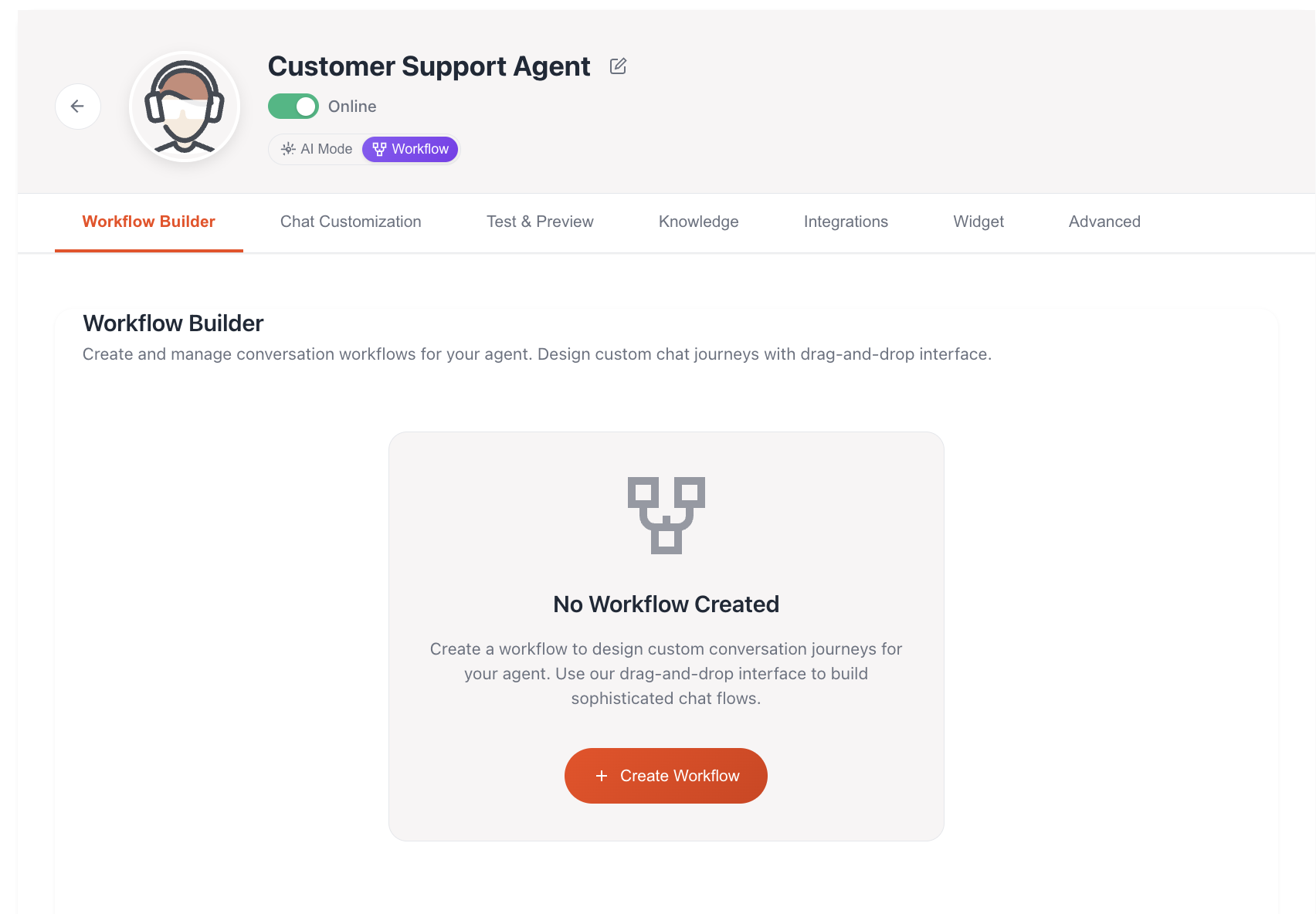
1. **Switch to Workflow Mode**: Click the "Workflow" button in your agent configuration
2. **Access Workflow Builder**: Navigate to the "Workflow Builder" tab
3. **Create New Workflow**: Click "+ Create Workflow" to start building
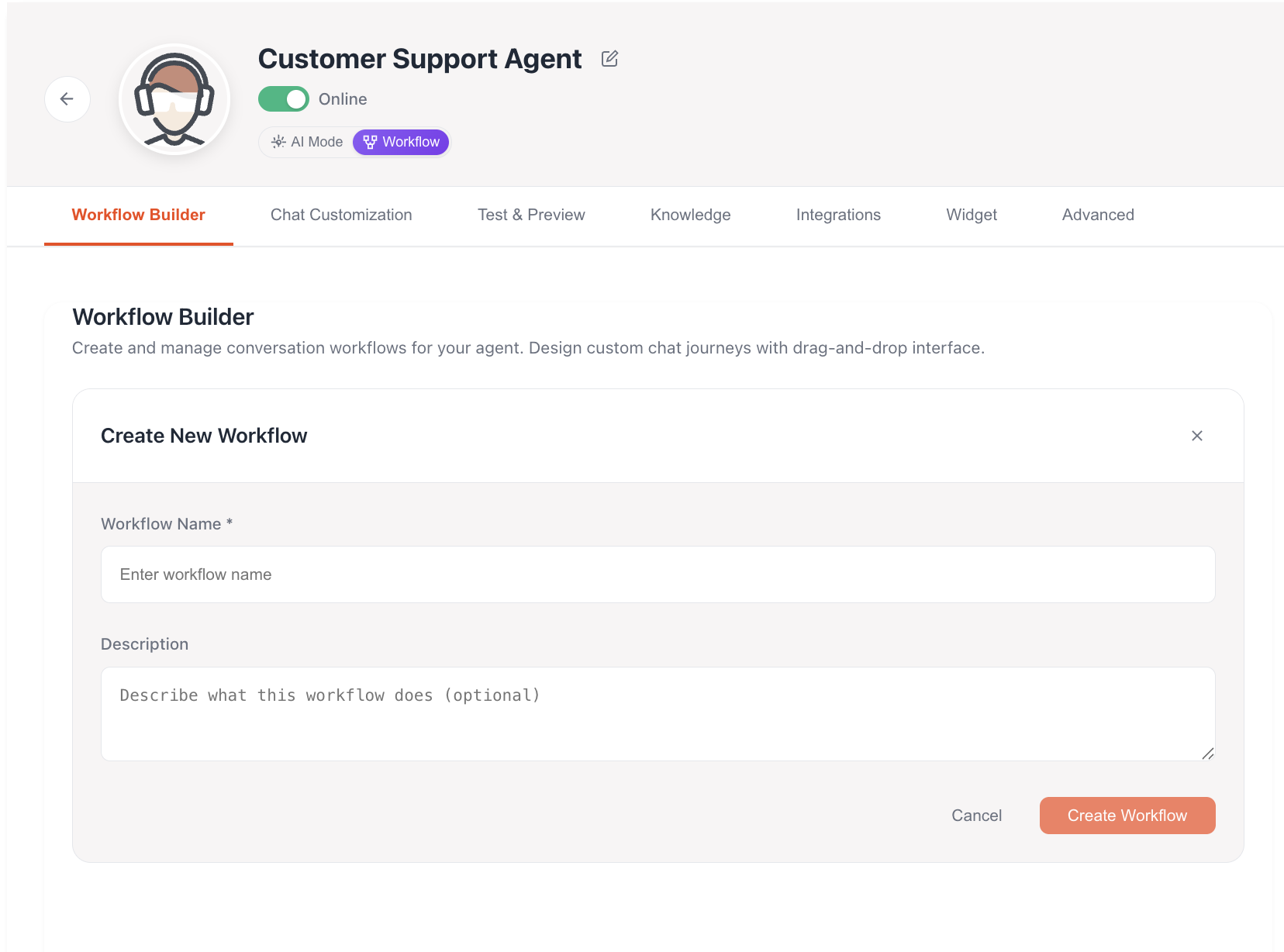
4. **Name Your Workflow**: Provide a descriptive name and optional description
## Getting Started
### Creating a Workflow
1. **Switch to Workflow Mode**: Click the "Workflow" button in your agent configuration
2. **Access Workflow Builder**: Navigate to the "Workflow Builder" tab
3. **Create New Workflow**: Click "+ Create Workflow" to start building
4. **Name Your Workflow**: Provide a descriptive name and optional description
 ### Workflow Management
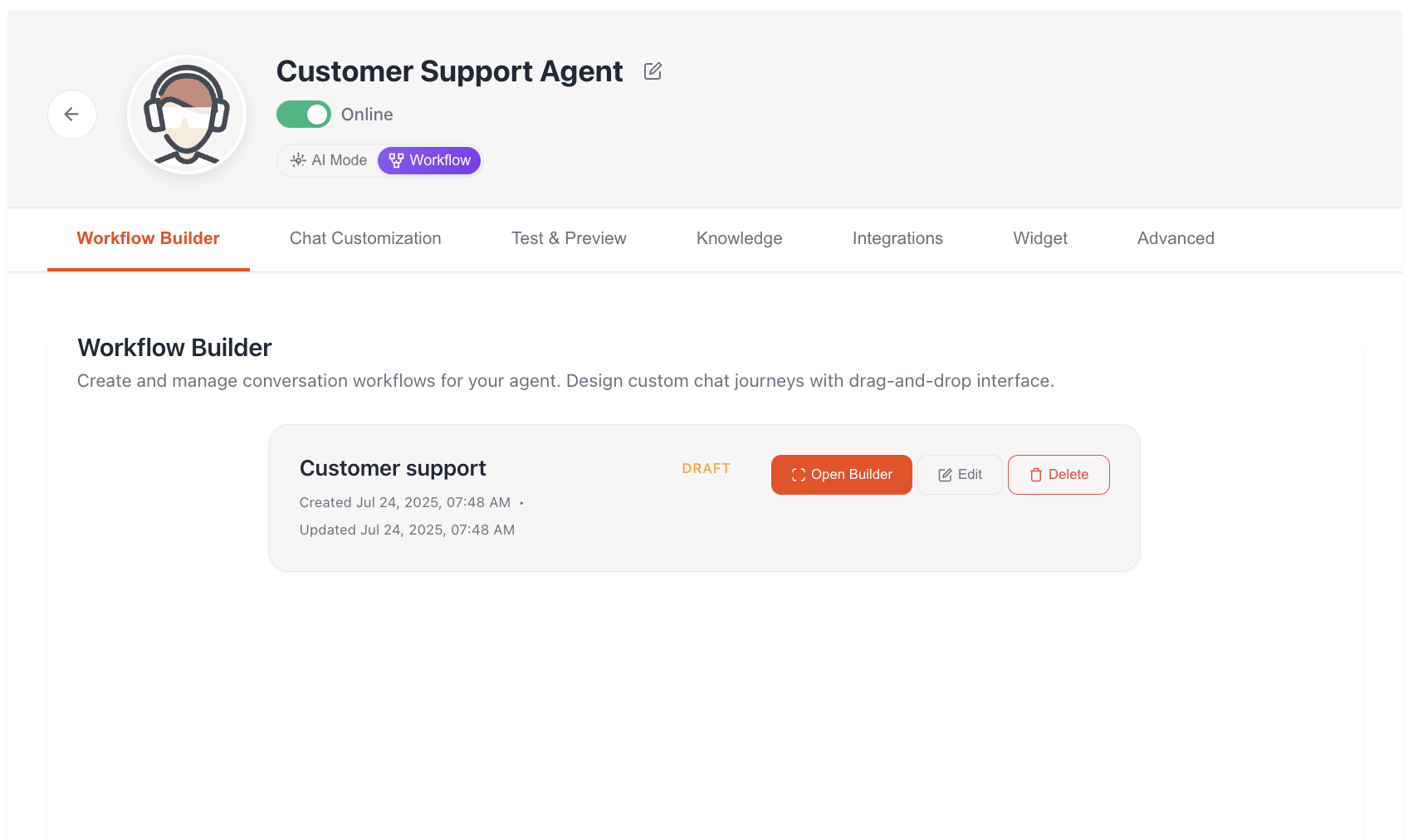
Once created, you can manage your workflows with the following actions:
* **Open Builder**: Access the visual workflow editor
* **Edit**: Modify workflow name and description
* **Delete**: Remove the workflow permanently
* **Status**: Track workflow status (Draft, Published)
### Workflow Management
Once created, you can manage your workflows with the following actions:
* **Open Builder**: Access the visual workflow editor
* **Edit**: Modify workflow name and description
* **Delete**: Remove the workflow permanently
* **Status**: Track workflow status (Draft, Published)
 ## Workflow Builder Interface
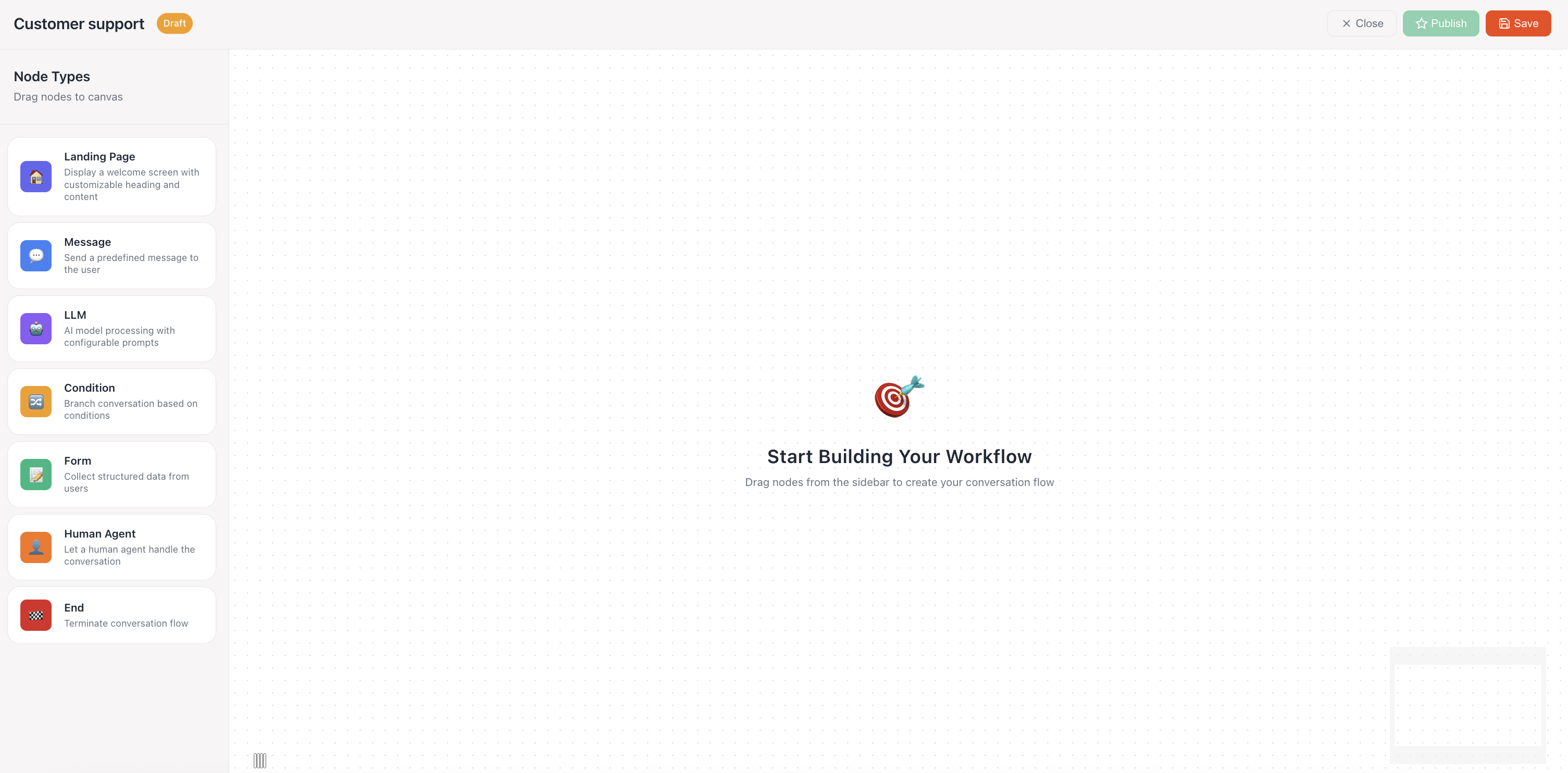
The workflow builder provides a comprehensive visual interface for designing conversation flows:
### Canvas Area
* **Drag-and-Drop Interface**: Build workflows by dragging nodes from the sidebar
* **Visual Flow Design**: Connect nodes to create conversation paths
* **Real-time Preview**: See your workflow structure as you build
### Node Sidebar
Access all available node types for building your workflow:
## Workflow Builder Interface
The workflow builder provides a comprehensive visual interface for designing conversation flows:
### Canvas Area
* **Drag-and-Drop Interface**: Build workflows by dragging nodes from the sidebar
* **Visual Flow Design**: Connect nodes to create conversation paths
* **Real-time Preview**: See your workflow structure as you build
### Node Sidebar
Access all available node types for building your workflow:
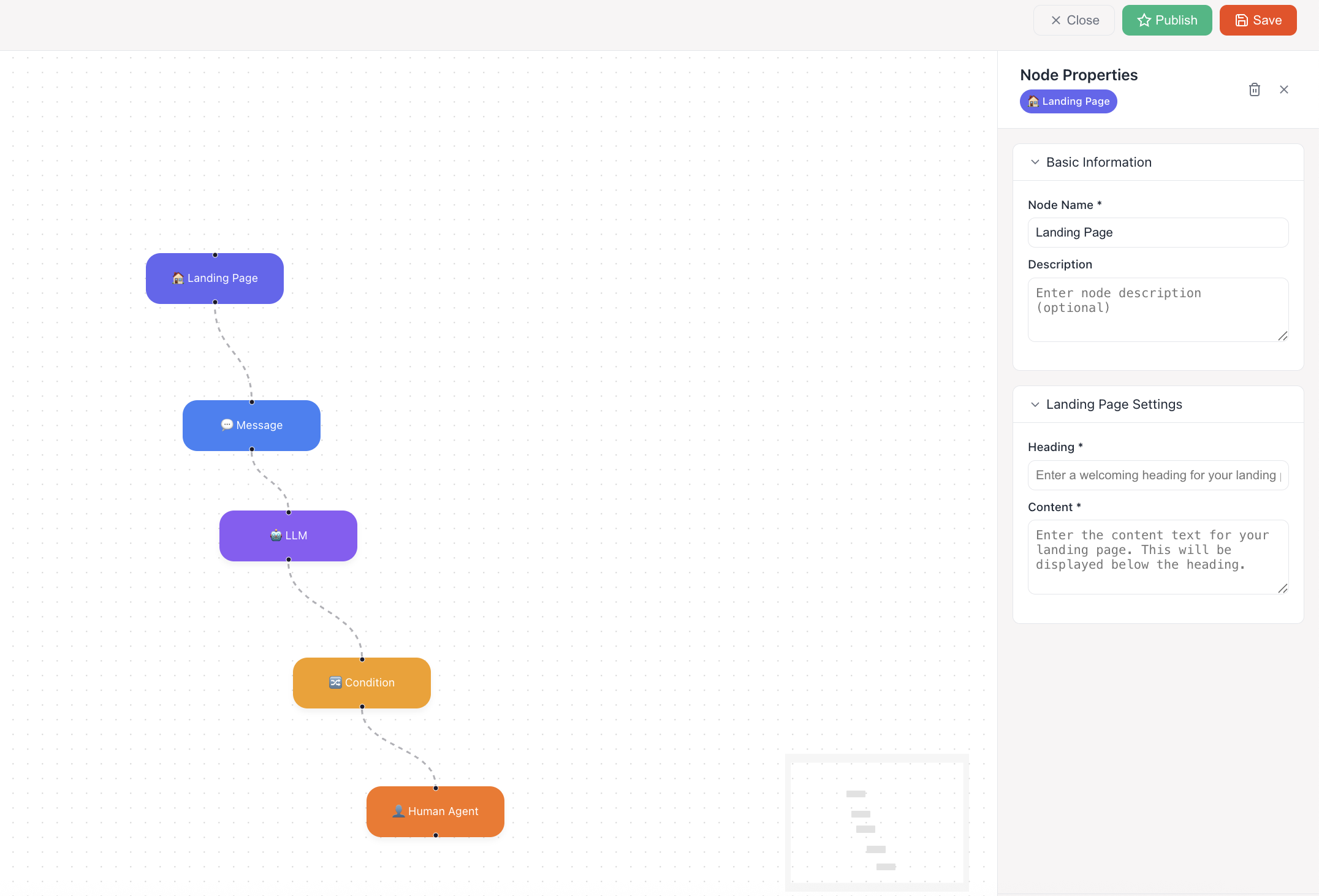
 ### Properties Panel
Configure each node's settings and behavior:
### Properties Panel
Configure each node's settings and behavior:
 ## Node Types
### Landing Page
Display a welcome screen with customizable heading and content
**Purpose**: Create the initial interaction point for users entering your workflow
**Configuration**:
* **Node Name**: Identify the node in your workflow
* **Description**: Optional description for documentation
* **Heading**: Welcome message or title for users
* **Content**: Detailed text displayed below the heading
**Use Cases**:
* Welcome messages for new visitors
* Introduction to services or products
* Setting expectations for the conversation
***
### Message
Send a predefined message to the user
**Purpose**: Deliver static content or information to users at specific points in the conversation
**Configuration**:
* **Message Content**: The text to be sent to the user
* **Formatting**: Support for rich text and basic formatting
* **Delay Settings**: Optional delay before sending the message
**Use Cases**:
* Providing information or instructions
* Confirming user actions
* Delivering notifications or updates
***
### LLM (Large Language Model)
AI model processing with configurable prompts
**Purpose**: Integrate AI-powered responses and intelligent conversation handling
**Configuration**:
* **Model Selection**: Choose the AI model to use
* **System Prompt**: Define the AI's behavior and personality
* **Context Management**: Control conversation history and context
* **Response Parameters**: Temperature, max tokens, and other AI settings
**Use Cases**:
* Dynamic question answering
* Intelligent conversation routing
* Content generation and assistance
***
### Condition
Branch conversation based on conditions
**Purpose**: Create decision points that route conversations based on user input, data, or other criteria
**Configuration**:
* **Condition Logic**: Define the criteria for branching
* **Multiple Paths**: Create different routes based on conditions
* **Default Path**: Fallback route when conditions aren't met
* **Variable Evaluation**: Use collected data in conditions
**Use Cases**:
* Routing based on user preferences
* Handling different user types or roles
* Creating complex conversation logic
***
### Form
Collect structured data from users
**Purpose**: Gather specific information from users through structured input fields
**Configuration**:
* **Field Types**: Text, email, number, select, etc.
* **Validation Rules**: Required fields and format validation
* **Field Labels**: User-friendly labels for each input
* **Submission Handling**: Define what happens after form completion
**Use Cases**:
* User registration and onboarding
* Contact information collection
* Survey and feedback forms
* Service request details
***
### Human Agent
Let a human agent handle the conversation
**Purpose**: Transfer the conversation to a live human agent when AI assistance isn't sufficient
**Configuration**:
* **Agent Assignment**: Specify which agents can handle transfers
* **Transfer Conditions**: Define when transfers should occur
* **Context Passing**: Share conversation history with human agents
* **Escalation Rules**: Set priority and urgency levels
**Use Cases**:
* Complex issue resolution
* Sales conversations requiring human touch
* Sensitive customer complaints
* Technical support escalation
***
### End
Terminate conversation flow
**Purpose**: Properly conclude the workflow and end the conversation
**Configuration**:
* **Ending Message**: Final message to the user
* **Session Cleanup**: Clear temporary data and variables
* **Analytics Tracking**: Record completion metrics
* **Follow-up Actions**: Optional post-conversation tasks
**Use Cases**:
* Successful conversation completion
* User-initiated conversation ending
* Error handling and graceful exits
* Redirecting to external resources
## Workflow Management
### Workflow States
**Draft**:
* Workflow is being created or edited
* Not active for live conversations
* Changes can be made freely
**Published**:
* Workflow is live and handling conversations
* Users interact with the published version
* Editing requires creating a new draft
### Best Practices
1. **Start Simple**: Begin with basic flows and add complexity gradually
2. **Test Thoroughly**: Use the preview feature to test all conversation paths
3. **Plan User Journeys**: Map out expected user interactions before building
4. **Use Clear Naming**: Give nodes descriptive names for easy maintenance
5. **Handle Edge Cases**: Include fallback paths for unexpected user behavior
6. **Regular Updates**: Keep workflows current with business changes
### Advanced Features
**Variable Management**:
* Store and use data collected throughout the conversation
* Pass information between nodes
* Use variables in conditions and messages
**Integration Capabilities**:
* Connect to external APIs and services
* Trigger webhooks and notifications
* Database operations and data storage
**Analytics and Monitoring**:
* Track user progress through workflows
* Identify bottlenecks and drop-off points
* Measure conversion rates and success metrics
Workflows provide powerful automation capabilities while maintaining the flexibility to handle complex conversation scenarios. Start with simple flows and gradually build more sophisticated interactions as you become familiar with the system.
Back: Learn about AI agent configuration and customization
## Node Types
### Landing Page
Display a welcome screen with customizable heading and content
**Purpose**: Create the initial interaction point for users entering your workflow
**Configuration**:
* **Node Name**: Identify the node in your workflow
* **Description**: Optional description for documentation
* **Heading**: Welcome message or title for users
* **Content**: Detailed text displayed below the heading
**Use Cases**:
* Welcome messages for new visitors
* Introduction to services or products
* Setting expectations for the conversation
***
### Message
Send a predefined message to the user
**Purpose**: Deliver static content or information to users at specific points in the conversation
**Configuration**:
* **Message Content**: The text to be sent to the user
* **Formatting**: Support for rich text and basic formatting
* **Delay Settings**: Optional delay before sending the message
**Use Cases**:
* Providing information or instructions
* Confirming user actions
* Delivering notifications or updates
***
### LLM (Large Language Model)
AI model processing with configurable prompts
**Purpose**: Integrate AI-powered responses and intelligent conversation handling
**Configuration**:
* **Model Selection**: Choose the AI model to use
* **System Prompt**: Define the AI's behavior and personality
* **Context Management**: Control conversation history and context
* **Response Parameters**: Temperature, max tokens, and other AI settings
**Use Cases**:
* Dynamic question answering
* Intelligent conversation routing
* Content generation and assistance
***
### Condition
Branch conversation based on conditions
**Purpose**: Create decision points that route conversations based on user input, data, or other criteria
**Configuration**:
* **Condition Logic**: Define the criteria for branching
* **Multiple Paths**: Create different routes based on conditions
* **Default Path**: Fallback route when conditions aren't met
* **Variable Evaluation**: Use collected data in conditions
**Use Cases**:
* Routing based on user preferences
* Handling different user types or roles
* Creating complex conversation logic
***
### Form
Collect structured data from users
**Purpose**: Gather specific information from users through structured input fields
**Configuration**:
* **Field Types**: Text, email, number, select, etc.
* **Validation Rules**: Required fields and format validation
* **Field Labels**: User-friendly labels for each input
* **Submission Handling**: Define what happens after form completion
**Use Cases**:
* User registration and onboarding
* Contact information collection
* Survey and feedback forms
* Service request details
***
### Human Agent
Let a human agent handle the conversation
**Purpose**: Transfer the conversation to a live human agent when AI assistance isn't sufficient
**Configuration**:
* **Agent Assignment**: Specify which agents can handle transfers
* **Transfer Conditions**: Define when transfers should occur
* **Context Passing**: Share conversation history with human agents
* **Escalation Rules**: Set priority and urgency levels
**Use Cases**:
* Complex issue resolution
* Sales conversations requiring human touch
* Sensitive customer complaints
* Technical support escalation
***
### End
Terminate conversation flow
**Purpose**: Properly conclude the workflow and end the conversation
**Configuration**:
* **Ending Message**: Final message to the user
* **Session Cleanup**: Clear temporary data and variables
* **Analytics Tracking**: Record completion metrics
* **Follow-up Actions**: Optional post-conversation tasks
**Use Cases**:
* Successful conversation completion
* User-initiated conversation ending
* Error handling and graceful exits
* Redirecting to external resources
## Workflow Management
### Workflow States
**Draft**:
* Workflow is being created or edited
* Not active for live conversations
* Changes can be made freely
**Published**:
* Workflow is live and handling conversations
* Users interact with the published version
* Editing requires creating a new draft
### Best Practices
1. **Start Simple**: Begin with basic flows and add complexity gradually
2. **Test Thoroughly**: Use the preview feature to test all conversation paths
3. **Plan User Journeys**: Map out expected user interactions before building
4. **Use Clear Naming**: Give nodes descriptive names for easy maintenance
5. **Handle Edge Cases**: Include fallback paths for unexpected user behavior
6. **Regular Updates**: Keep workflows current with business changes
### Advanced Features
**Variable Management**:
* Store and use data collected throughout the conversation
* Pass information between nodes
* Use variables in conditions and messages
**Integration Capabilities**:
* Connect to external APIs and services
* Trigger webhooks and notifications
* Database operations and data storage
**Analytics and Monitoring**:
* Track user progress through workflows
* Identify bottlenecks and drop-off points
* Measure conversion rates and success metrics
Workflows provide powerful automation capabilities while maintaining the flexibility to handle complex conversation scenarios. Start with simple flows and gradually build more sophisticated interactions as you become familiar with the system.
Back: Learn about AI agent configuration and customization