

Widget Integration
Add the ChatterMate chat widget to your website using either direct script integration or iframe embedding, then choose where it sits and how visitors open it.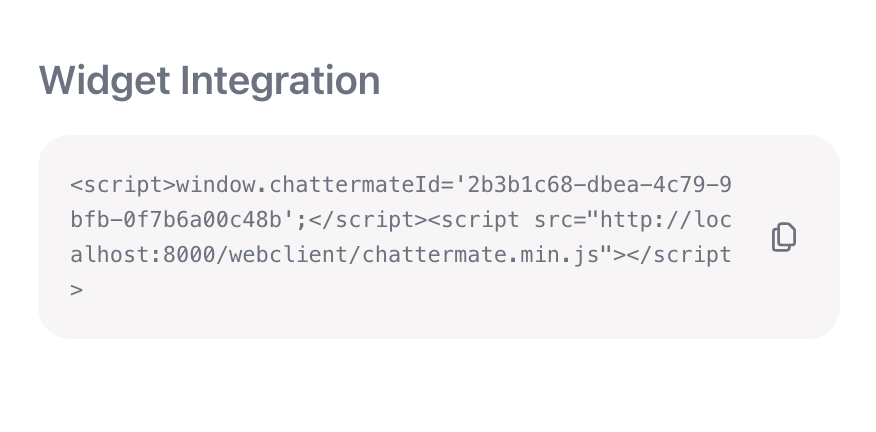
Integration Methods
1. Script Integration (Recommended)
Add the following code snippet to your website’s HTML, just before the closing</body> tag:
YOUR_WIDGET_ID with your unique widget identifier from the ChatterMate dashboard.
2. IFrame Integration
Alternatively, embed the chat widget using an iframe:The iframe method is useful for testing or when you need more control over the widget’s placement and dimensions.
Placement
By default the launcher is a round bubble 20px from the bottom-right corner, and the chat window opens above it. You can change that in two places:- In the dashboard — the Widget placement section of your agent’s Customization tab. These are the defaults for every site the agent is embedded on.
- In the embed snippet — anything you set on the page wins over the dashboard, so one agent can look different on your pricing page than in your docs.
Ways to present the widget
Floating bubble
displayMode: 'floating' — the default, on the left or right, with a chat window above it.Sidebar drawer
displayMode: 'sidebar-left' or 'sidebar-right' — a full-height panel sliding in from that edge.Search bar
displayMode: 'search-bar' — the launcher becomes a search-style bar that opens a centered palette.No launcher
launcher: false — nothing is drawn until you open the chat from your own button.The search bar mode needs the Ask Anything or Aurora chat design, because those are the two designs that open as a command palette. The dashboard greys the option out for other designs.
Setting placement on the page
Setwindow.chattermateConfig before the loader script. No JavaScript calls needed:
ChatterMate.init() takes exactly the same options if you prefer to configure the widget after the script has loaded:
Options
The legacy form
position: { bottom, right } still works — right is treated as offset — so existing installations need no changes.Mobile
On small screens the chat always opens full-screen, whichever display mode you choose. Your offsets still control where the closed launcher sits, so it can be kept clear of a bottom navigation bar.Using your own button
Hide the built-in launcher and open the chat from an element of your own. There are three ways, and none of them requires you to write an event handler.- data-chattermate-open
- A CSS selector
- The JS API
Add the attribute to any element. It works for elements added to the page later, too.
JavaScript API
window.ChatterMate is available as soon as the loader script runs. Calls that arrive before the widget has finished loading are queued and applied once it is ready, so you do not have to wait.
Prefilling a message
open({ message }) puts text in the input without sending it, so the visitor can edit it or just press enter. Good for “Ask about pricing” links next to a plan:
Login and logout in a single-page app
The widget’s identity is fixed when it loads — the token it starts with decides whose conversation it shows. An app that signs a visitor in or out without reloading the page has to say so, or the widget keeps the identity it had when the script first ran: anonymous after a login, the previous user after a logout.identify() with the token the widget is already running on does nothing, so it is safe
to call on every route change.
Handing identify() a fresher token for the same visitor is not a change of
identity: the widget takes the new token and keeps the conversation open, so
re-authenticating never costs someone the chat they are in the middle of.
Two more lifecycle methods:
destroy() removes the launcher, the chat frame, the injected styles, and every listener
and timer the loader added, so nothing of ours is left on the page. It does not clear the
stored identity — a later reload() comes back as the same visitor, so use logout() if
that is what you want.
With token authentication required,
logout() leaves the
widget without a token and it cannot load. Pair it with hideLauncher(), or call
destroy() instead.Staying signed in on a long-lived page
A token from/generate-token lasts as long as you asked for — an hour by default. The
widget renews it on its own well before it lapses, so a tab left open all day keeps the
visitor signed in, and a new chat they start hours later still arrives in your inbox as
that person, with their custom_data.
Renewal keeps the same customer and the same lifetime, and stops if you revoke the
token. It cannot run forever: after 30 days your app has to identify the visitor again.
That only leaves the case where the widget has no live token to renew — the tab was
asleep past the expiry, or the token was revoked. The widget cannot mint one itself
(that needs your API key), so give it a way to ask:
tokenProvider is called only when the widget needs a token you alone can issue. The
replacement is handed to the running widget, so the visitor keeps the conversation they
were in. Without one, the widget falls back to an anonymous visitor and fires
identityExpired so you can react yourself.
Return a token for the same person.
tokenProvider replaces an identity that ran
out; it is not a way to switch visitors — use identify() for that.Events
authenticated is false when the conversation belongs to an anonymous visitor rather
than the person you identified — a signal that the widget is running without a live
token from /generate-token.
ready fires only once. If you subscribe after it has already happened — for example from consent-gated or lazily loaded code — your handler is called immediately rather than never.Event Handling
The widget supports the following events:Token Management
Scroll Control
Security Features
Widget Features
Customer Identification
- Email collection before chat starts
- Automatic returning customer detection
- Previous conversation history loading
- Context maintenance across sessions
Chat Interface
- Real-time message updates
- Typing indicators, shown only while a reply is actually being written
- Message status tracking
- File attachment support
- Markdown formatting support
- Emoji support
Availability
The line under the agent’s name reflects who is answering.- While the AI is answering it reads Online · replies instantly, which holds at any hour
- When a person has to answer — an agent in human mode, or a chat a teammate has taken over — it follows your organization’s business hours: usually replies in a few minutes while you are open, we’ll reply when we’re back outside them
Styling
The widget uses CSS variables for consistent theming:Testing Your Integration
Test Project
We provide a sample test project atgithub.com/chattermate/chattermate.chat/tree/main/chattermate-test:
- Clone and setup:
- Start test server:
- Open
http://localhost:3000and enter your widget ID
- Basic widget initialization
- Token management
- Style customization
- Mobile responsiveness
Placement gallery
http://localhost:3000/ui-options.html is a gallery of every placement option — one card per scenario, each opening a page with the widget configured that way and buttons wired to the JS API.
Each card runs in one of two modes, chosen at the top of the gallery:
- Stub fakes the widget entirely, so you can check placement, the JS API and the events with no backend running.
- Real loads your actual widget — fill in your widget ID and API URL first.
Best Practices
-
Implementation
- Add script just before closing body tag
- Enable secure token storage
- Test on multiple browsers
- Verify mobile responsiveness
-
Security
- Store tokens securely
- Use HTTPS only
- Implement proper CSP headers
- Enable domain restrictions
-
User Experience
- Test email collection flow
- Verify history loading
- Check offline behavior
- Test connection handling
Troubleshooting
Token Issues
Token Issues
- Verify localStorage access
- Check token storage events
- Clear stored tokens and retry
- Verify domain permissions
Display Problems
Display Problems
- Check CSS variables
- Verify mobile breakpoints
- Test iframe dimensions
- Validate color codes
Nothing appears on the page
Nothing appears on the page
- Check whether Hide launcher is on in the Widget placement section — with no launcher, the chat only opens from your own button or
ChatterMate.open() - If your site has a high-stacking header or modal, raise
zIndex - Confirm the loader script actually loaded and
window.ChatterMateis defined
The widget still shows the previous user after login or logout
The widget still shows the previous user after login or logout
- In a single-page app the widget keeps the identity it loaded with — call
ChatterMate.identify(token)after login andChatterMate.logout()after logout (see login and logout in a single-page app) identify()ignores an empty token, so check yours is a real string and notundefinedstringified by your auth store- Handing
identify()a fresher token for the same person keeps their conversation rather than rebuilding — usereload()if you actually want a rebuild
The search bar mode is greyed out
The search bar mode is greyed out
- It needs the Ask Anything or Aurora chat design, set under Customization → Chat design
Connection Issues
Connection Issues
- Verify widget ID
- Check network connectivity
- Test WebSocket connection
- Validate API endpoints
What’s Next?
After integrating the widget:- Test customer identification flow
- Verify conversation persistence
- Monitor connection stability
- Test mobile responsiveness
Human Agents
Next: Learn how to manage human agents