

Sign in with Instagram
ChatterMate Cloud. Instagram Business Login connects your account — no Meta app, no tokens, and no Facebook Page needed.
Enter credentials manually
Self-hosted, or anyone using their own Meta app. Paste an Instagram account ID and the linked Page’s access token.
On ChatterMate Cloud, connecting is a few clicks. Instagram Business Login connects
your account under ChatterMate’s reviewed app, so there is no Meta app to create, no
access token to generate, and no webhook to configure — sign in with Instagram,
assign an agent, and you’re live. It’s open to every Cloud account. The manual path
below is for self-hosters and anyone who prefers their own Meta app.
Prerequisites
- An Instagram Business or Creator account (not personal).
- Only for the manual path: the account must also be linked to a Facebook Page (Instagram → Settings → linked accounts, or from the Page’s settings), because the manual path authenticates with that Page’s token.
Signing in with Instagram needs no Facebook Page at all. It’s Instagram Business Login — a different sign-in from the Facebook one WhatsApp and Messenger use — so the business signs in with Instagram itself and the resulting token belongs to the Instagram account.
Connect by signing in with Instagram
1
Open the Instagram card
Go to Settings → Integrations and click Connect on the Instagram card, then Continue with Instagram.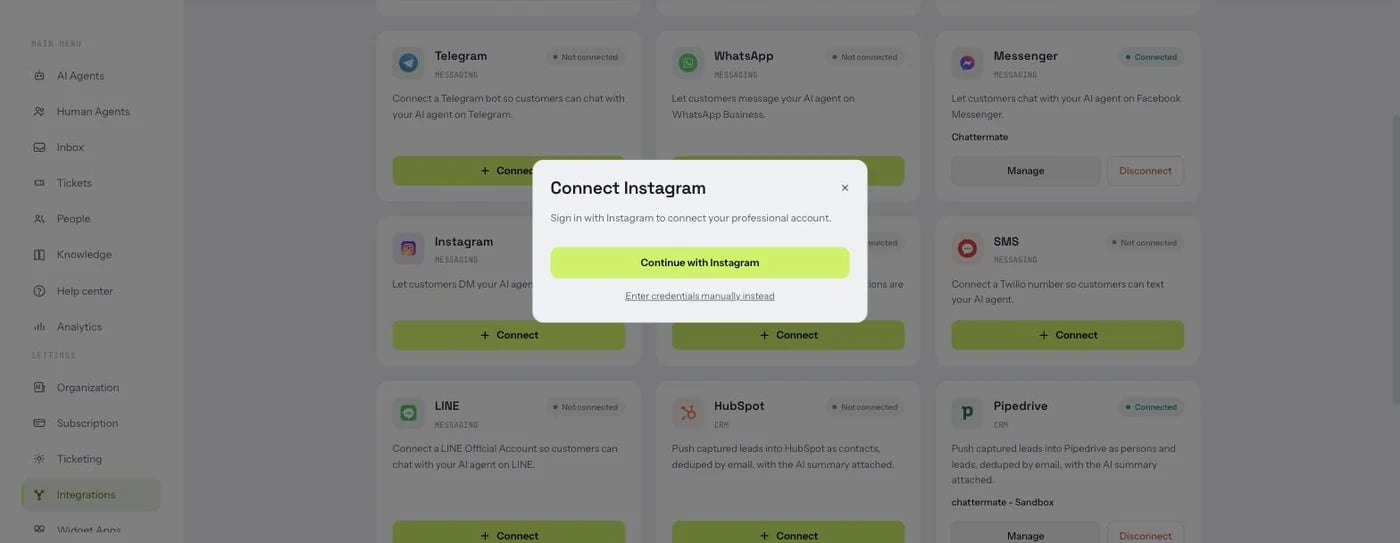
2
Sign in and grant access
Instagram’s sign-in opens in a popup. Sign in as the professional account you want ChatterMate to answer for, and approve access to read the account and manage its messages.
3
Assign an AI agent
Instagram Login grants exactly one account, so there’s nothing to pick — choose the agent that answers these DMs and click Assign agent.
ChatterMate subscribes the account to the Instagram messaging webhooks for you, so there is nothing to configure in the Meta dashboard. The connection shows up as your
@username.Connect with your own Meta app
Use this if you self-host, or would rather keep the integration under your own Meta app. This path uses the Facebook Graph API and the linked Page’s token, so the Instagram account must be linked to a Facebook Page.Step 1 — Set up a Meta app
If you already created a Meta app for WhatsApp or Messenger, skip to step 2.1
Create a Business app
Go to developers.facebook.com → My Apps → Create App → Business.
2
Business Verification
Complete Business Verification in business.facebook.com → Security Center. Start it first — it gates production access.
3
Add Instagram + Messenger
Add the Instagram product and link your professional account (Instagram messaging is configured through the Messenger/Instagram settings).
4
Set the webhook
Set the callback URL to
https://<your-domain>/api/v1/webhooks/meta with your META_WEBHOOK_VERIFY_TOKEN, and subscribe to Instagram messages.Step 2 — Copy your credentials
Step 3 — App Review (to message real customers)
Submit App Review for:instagram_basicinstagram_manage_messages- (plus
pages_show_list,business_management)
Step 4 — Connect in ChatterMate
1
Open the Instagram card
Go to Settings → Integrations and click Connect on the Instagram card, then Enter credentials manually instead.
2
Enter your credentials
Paste the Instagram account ID and the Linked page access token. ChatterMate encrypts them and verifies inbound webhook signatures.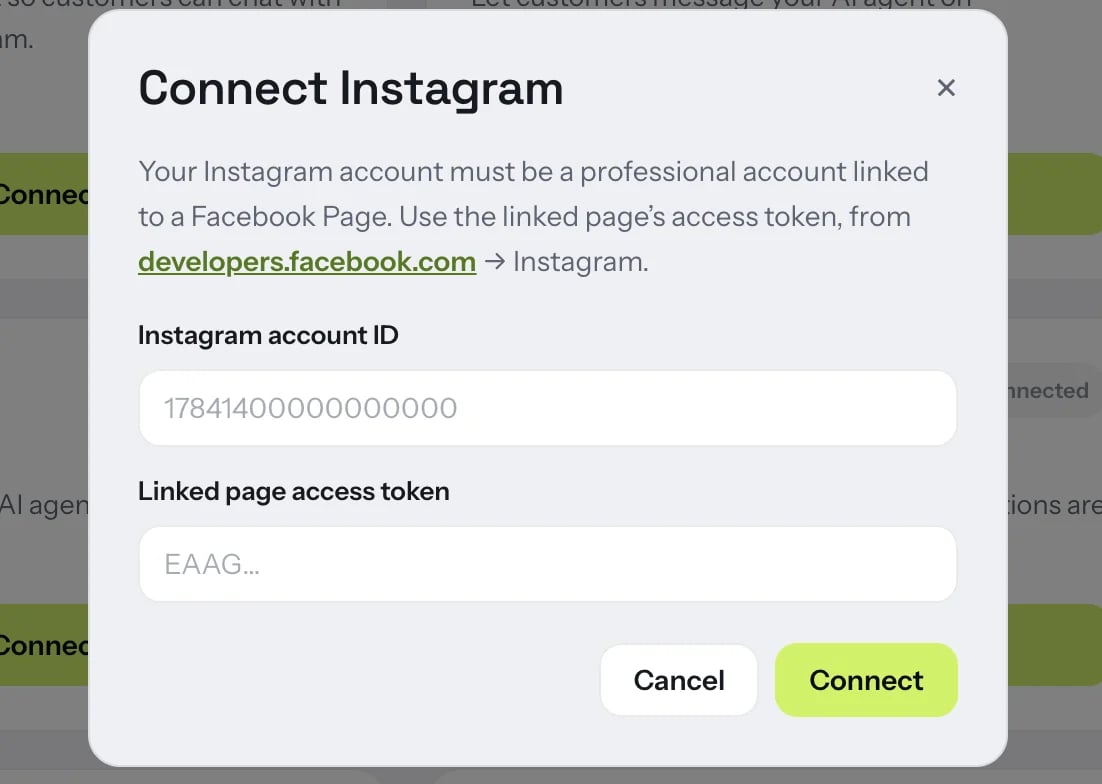
3
Assign an AI agent
Choose the AI agent that answers Instagram and click Assign agent.
If the account isn’t a professional account linked to a Page, connecting fails — ChatterMate surfaces the reason so you can fix the link and retry.