

Single Sign-On
Your team can sign in to the ChatterMate dashboard with a Google or Microsoft account instead of a password. On ChatterMate Cloud you can also create your account with one, and skip the emailed code.ChatterMate Cloud
Google and Microsoft are already on the login and signup pages. There is nothing to set up.
Self-hosted
Register an app with Google, Microsoft, or both, and add its client ID and secret to the backend’s environment.
Signing up (Cloud)
On the signup page, click Google or Microsoft and sign in with that account.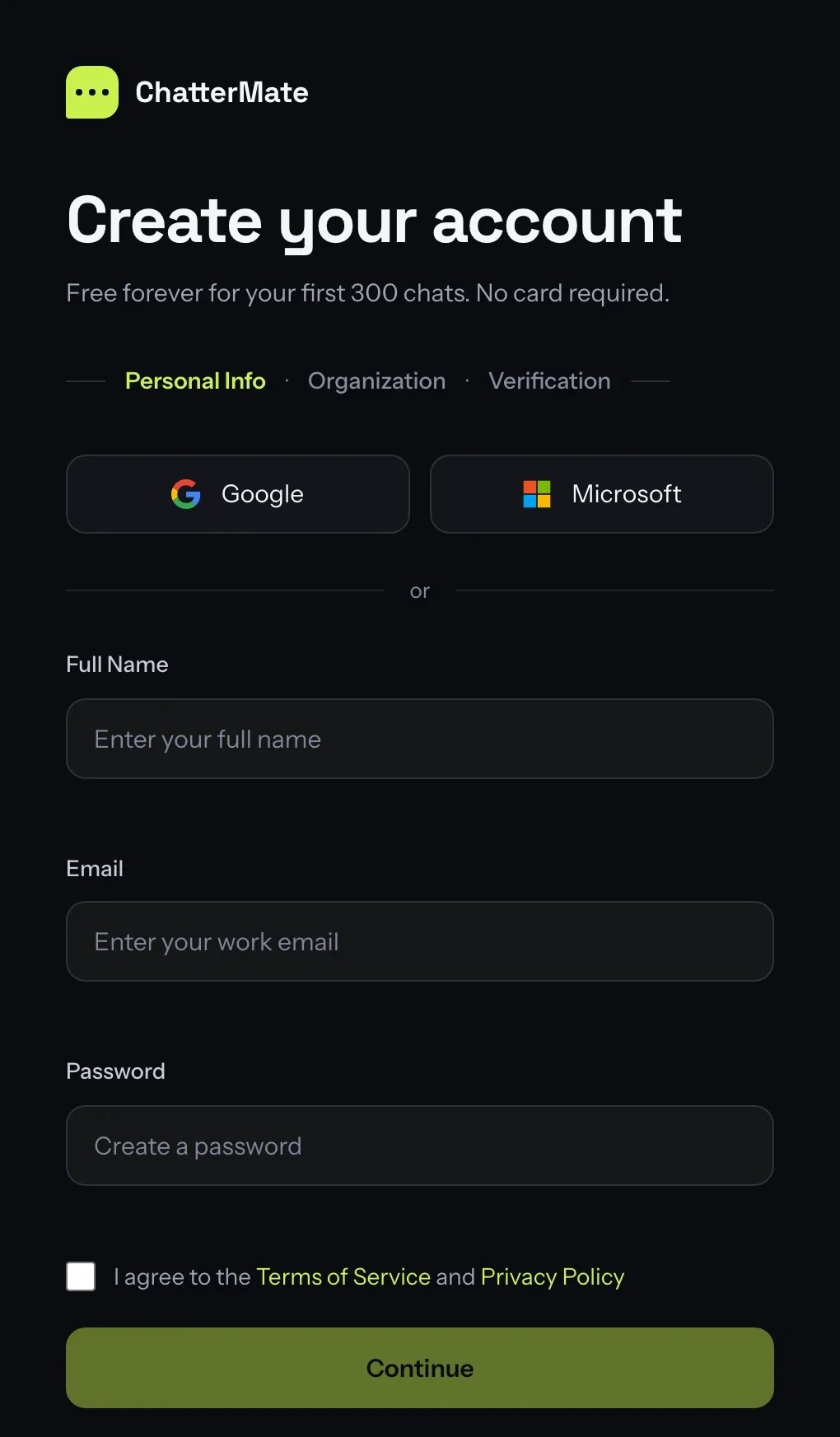
- Address confirmed
- Address not confirmed
You go straight to naming your organization. There is no password to choose and no code to enter.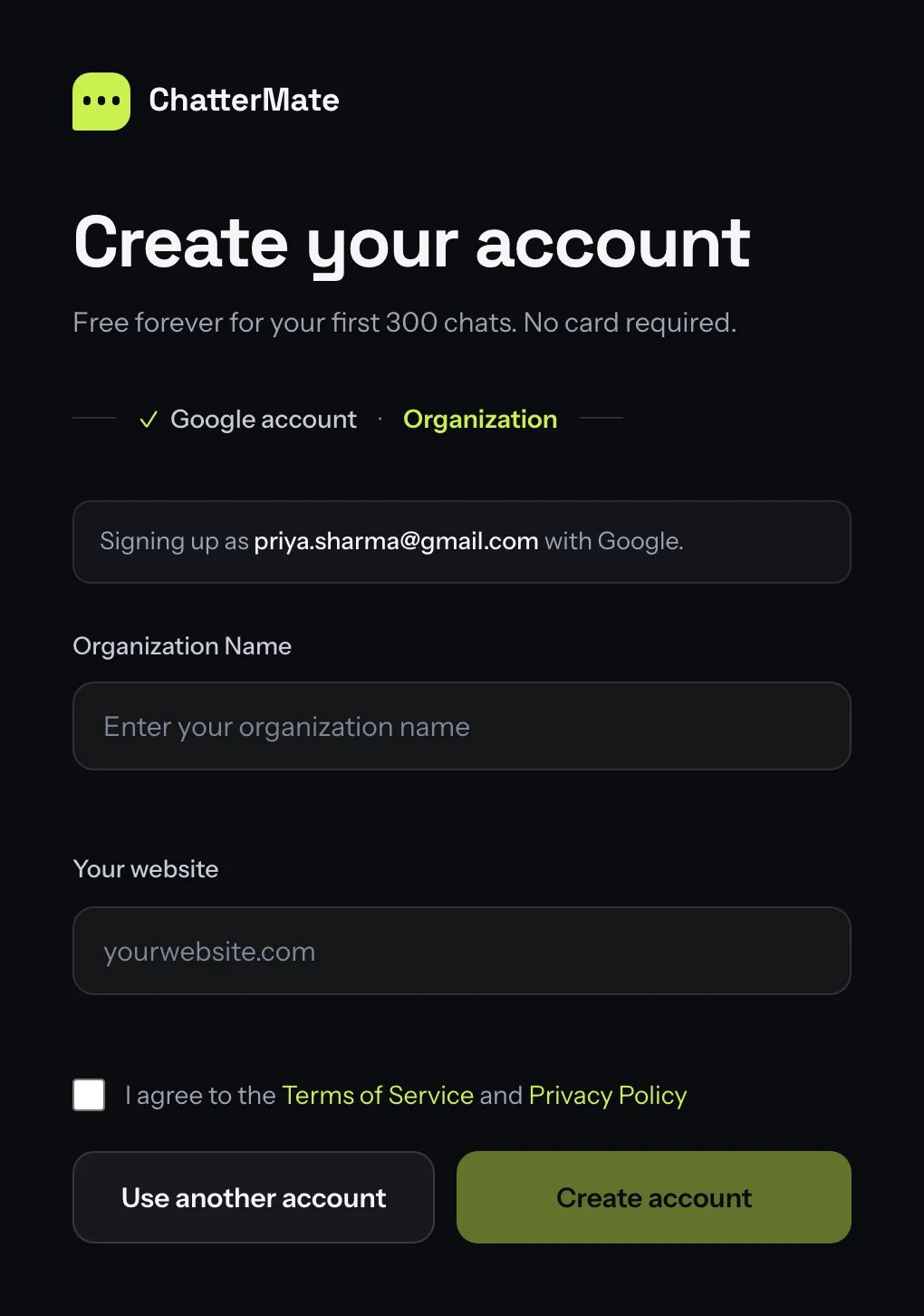
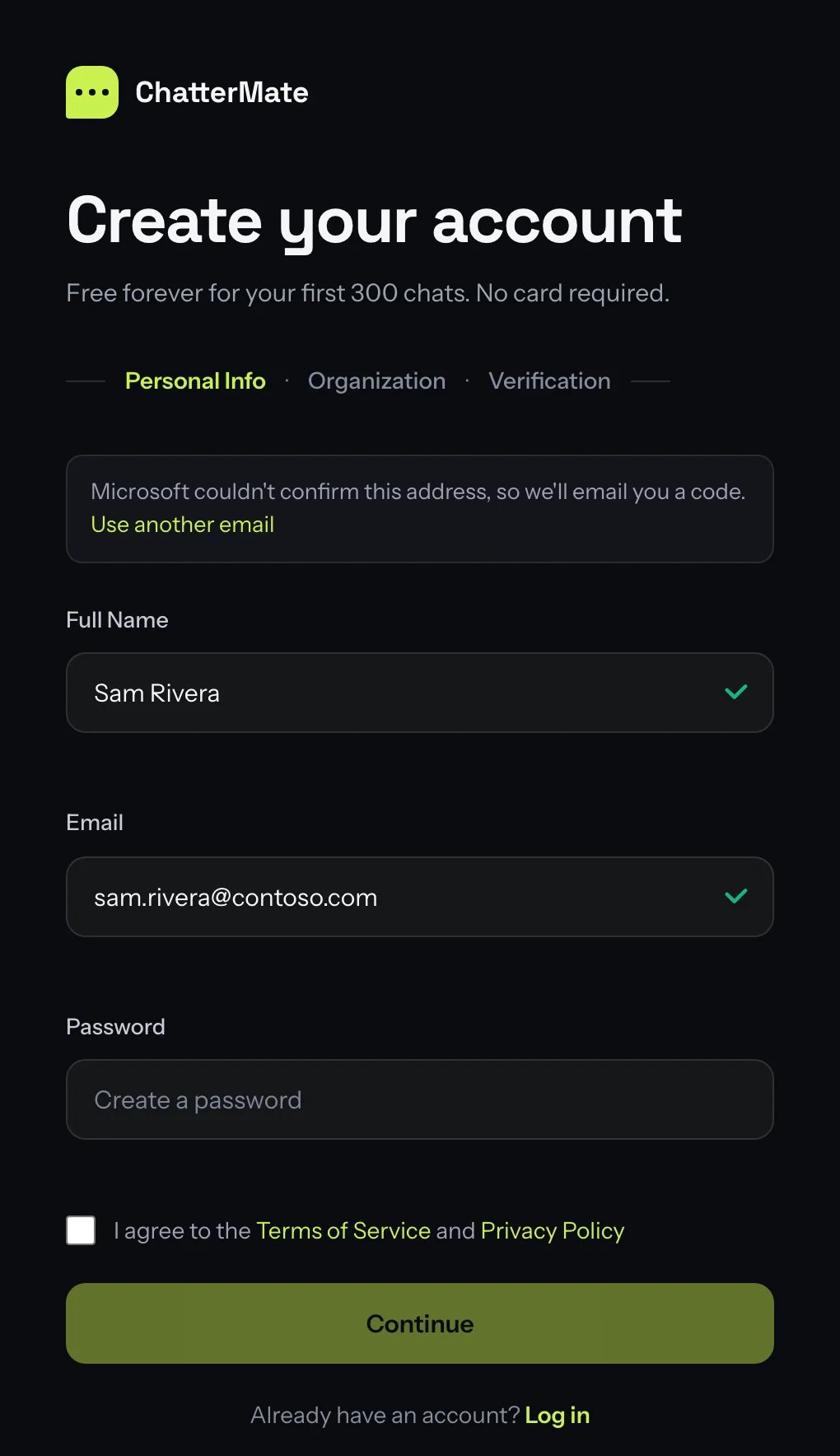
If you already have an account, clicking Google or Microsoft on the signup page simply signs you in.
Signing in
Click Google or Microsoft under the sign-in form.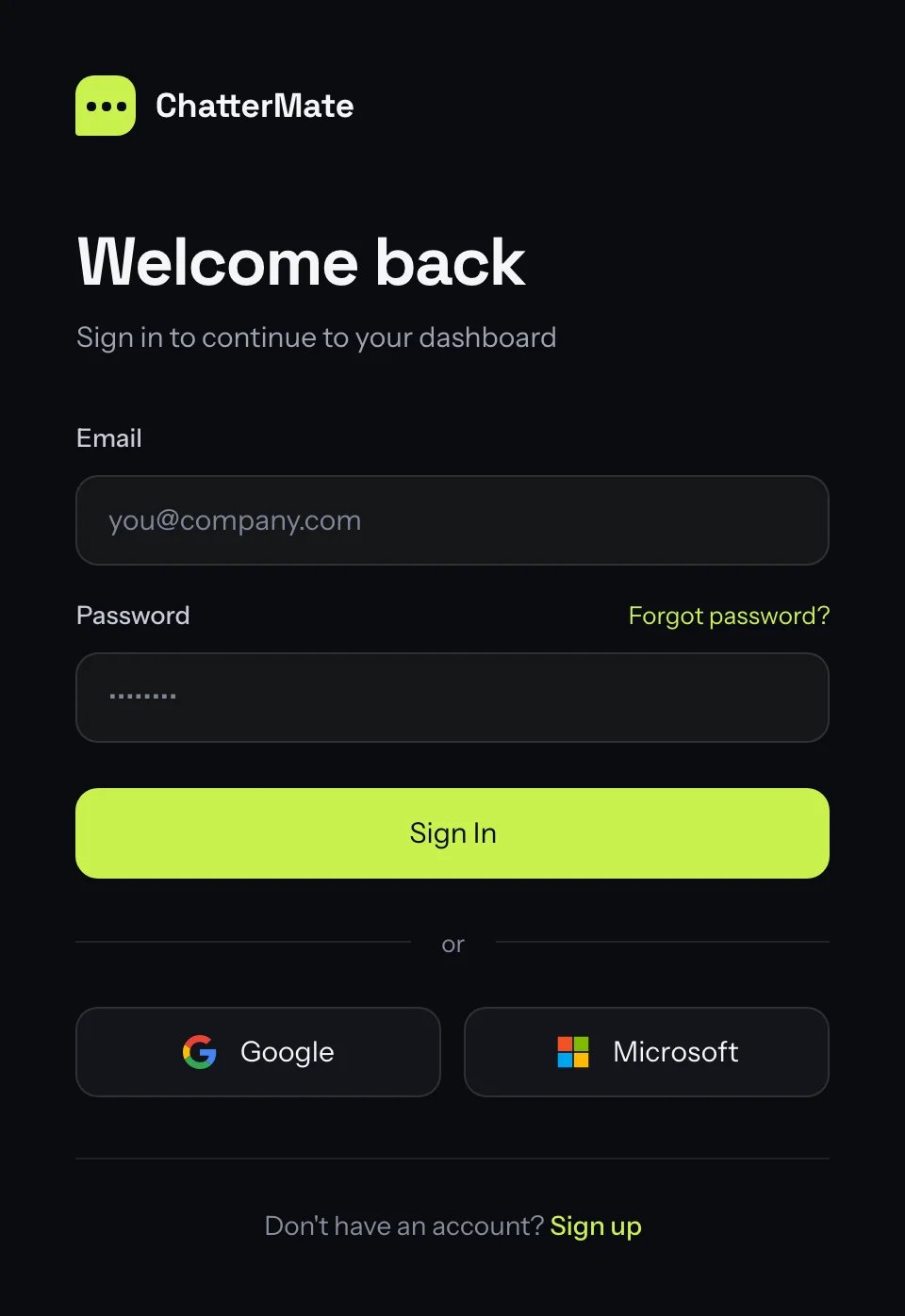
- A team member can link one account per provider.
- SSO never adds people to a team. Invite them first; they can then sign in with SSO.
- Changing a team member’s email address removes their links, and they link again at their next SSO sign-in.
- A team member without a profile picture gets the one from their Google or Microsoft account.
If sign-in doesn’t work
Self-hosting
Each provider appears on the login page once both its client ID and secret are set. Leave a provider’s values empty and its button doesn’t show. The redirect URIs come from yourBACKEND_URL:
1
Configure the consent screen
In the Google Cloud Console, open Google Auth Platform → Branding and set your app name, support email and authorized domain.
2
Choose who can sign in
Under Audience, choose Internal to allow only your own Google Workspace, or External for any Google account. An External app in Testing only lets the test users you list sign in; click Publish app to open it up. ChatterMate only asks for
openid, email and profile, which need no Google review.3
Create the client
Under Clients, create an OAuth client ID of type Web application, and add
{BACKEND_URL}/api/v1/sso/google/callback as an Authorized redirect URI.4
Add the keys
Copy the client ID and secret into the backend’s environment:
Microsoft
1
Register the app
In the Microsoft Entra admin center, go to App registrations → New registration. Under Supported account types, choose:
- Accounts in this organizational directory only to allow only your own company, or
- Accounts in any organizational directory and personal Microsoft accounts to allow anyone.
{BACKEND_URL}/api/v1/sso/microsoft/callback.2
Create a client secret
Under Certificates & secrets, add a New client secret and copy its Value (not the Secret ID). Secrets expire, so note the date and rotate it before then.
3
Check the permissions
Under API permissions, keep the Microsoft Graph delegated permission
User.Read (it is there by default). ChatterMate uses it to fetch the profile photo.4
Add the email and xms_edov claims
Under Token configuration, click Add optional claim, choose token type ID, and select
email and xms_edov. If xms_edov isn’t in the list, add both to optionalClaims.idToken in the app’s Manifest:5
Add the keys
Making SSO the way in
SetPASSWORD_LOGIN_ENABLED=false and the login page leads with the SSO buttons, keeping the password form one click away.
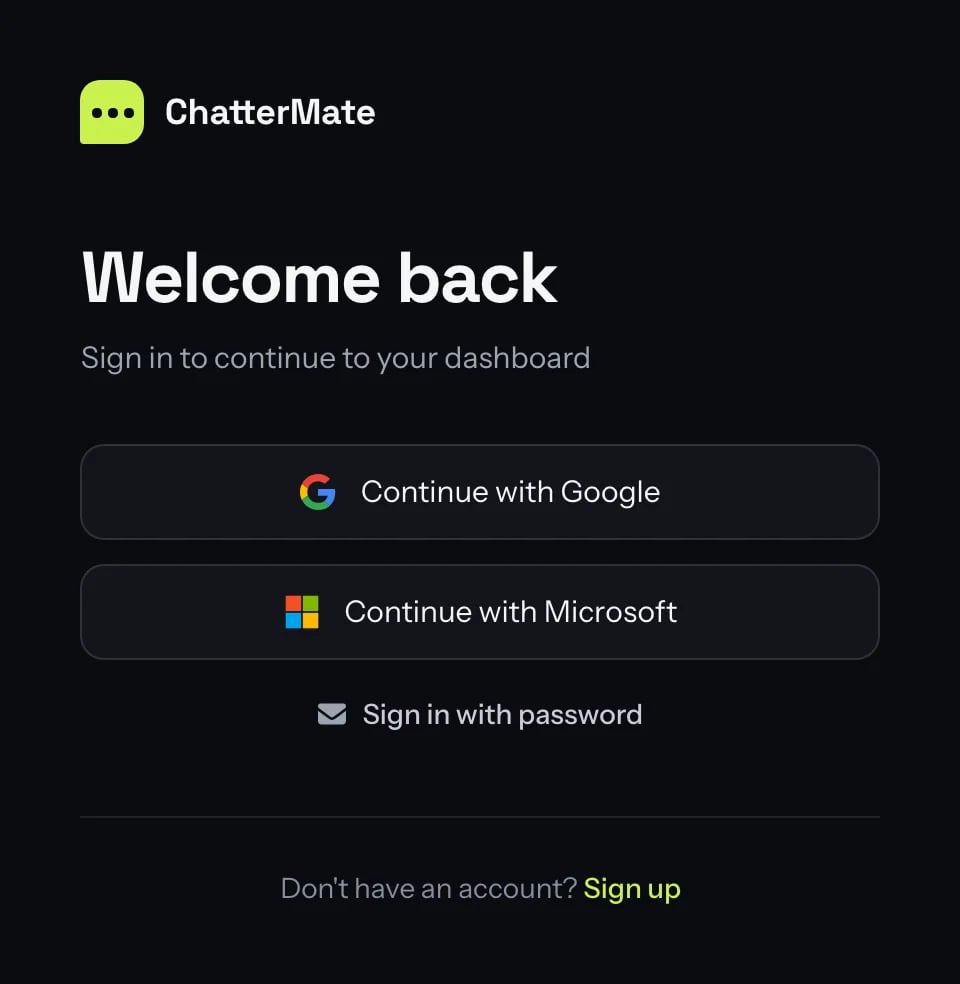
PASSWORD_LOGIN_ENABLED applies to the whole install, so it suits a self-hosted install used by one organization.