

Journeys
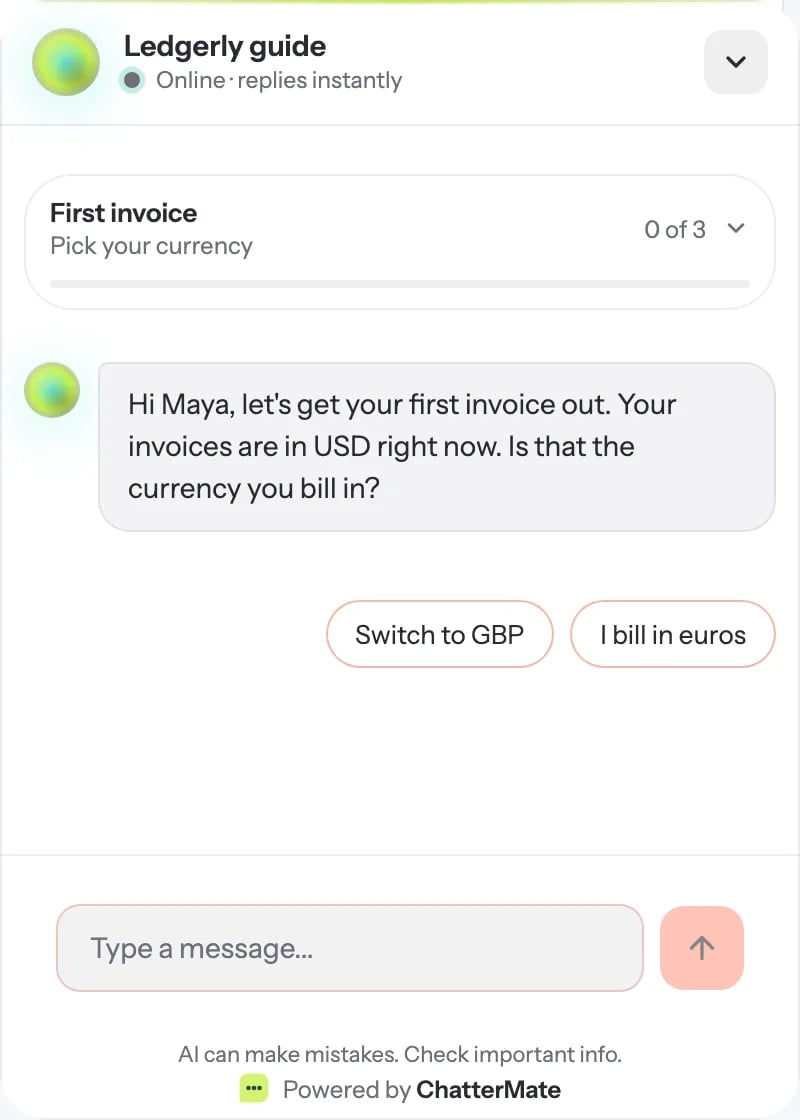
A journey is a short guided path through your app, such as Send your first invoice or Connect an integration. The chat widget shows the user where they are, offers to do each step for them with your in-app actions, and moves on when the step is done. You see where users stop in a funnel.Journeys are available on the Pro plan and above. Self-hosted installs have them with no
plan limits.
How it works
- A journey starts when its trigger happens: the user opens a page, your app sends an event, or your code starts it.
- Each step has a message, suggested replies, and a rule for when it is done. That can be an action succeeding, an app event, or a page field reaching a value.
- The guide stays pinned at the top of the chat. The user can open it to see every step, skip a step or hide the guide.
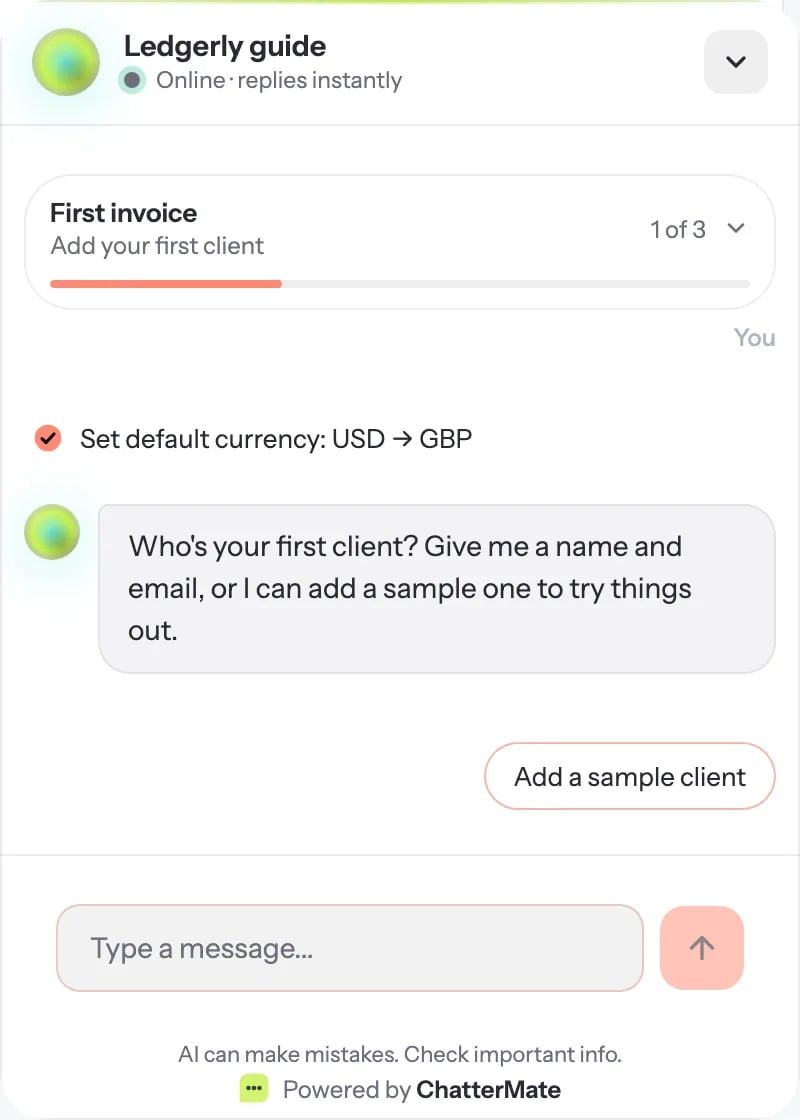
- The agent sees which step the user is on, so a typed request like “add Globex as a client” runs the right action and moves the guide on.
- ChatterMate keeps each user’s progress, so it continues on their next visit or device when the user is identified.
Before you start
1
Declare your actions
Set up the in-app actions the steps will use, and register them on
your page.
2
Limit the widget to your site
Add your app’s domain under Widget → Allowed domains.
3
Send page context and events (optional)
ChatterMate.setContext({...}) lets steps use fields like {{ctx.currency}}.
ChatterMate.notify('invoice_sent') reports things that happen in your app.Create a journey
Open AI Agents → your agent → Journeys. Start from a template, or click New journey.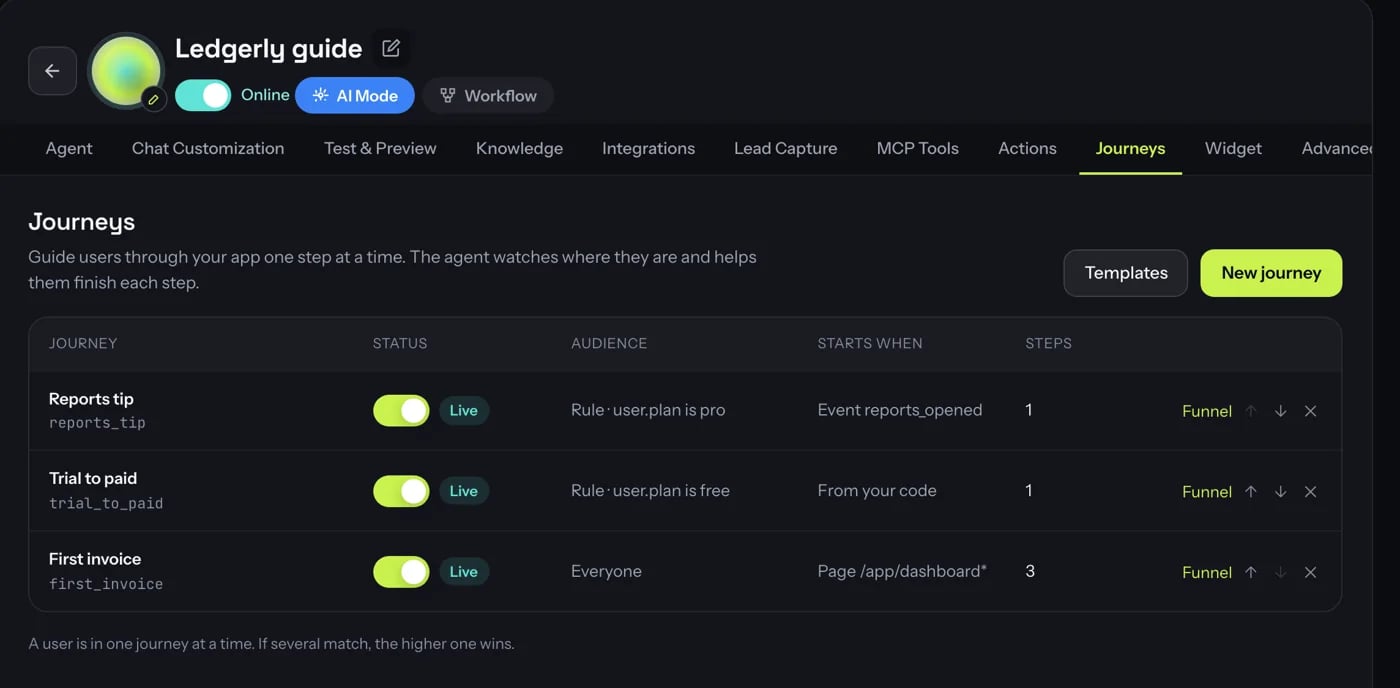
Templates
The templates follow what onboarding research shows works: short, done in context, and finished by a real result rather than by reaching the last screen. Pick one close to your product, then map its actions to yours.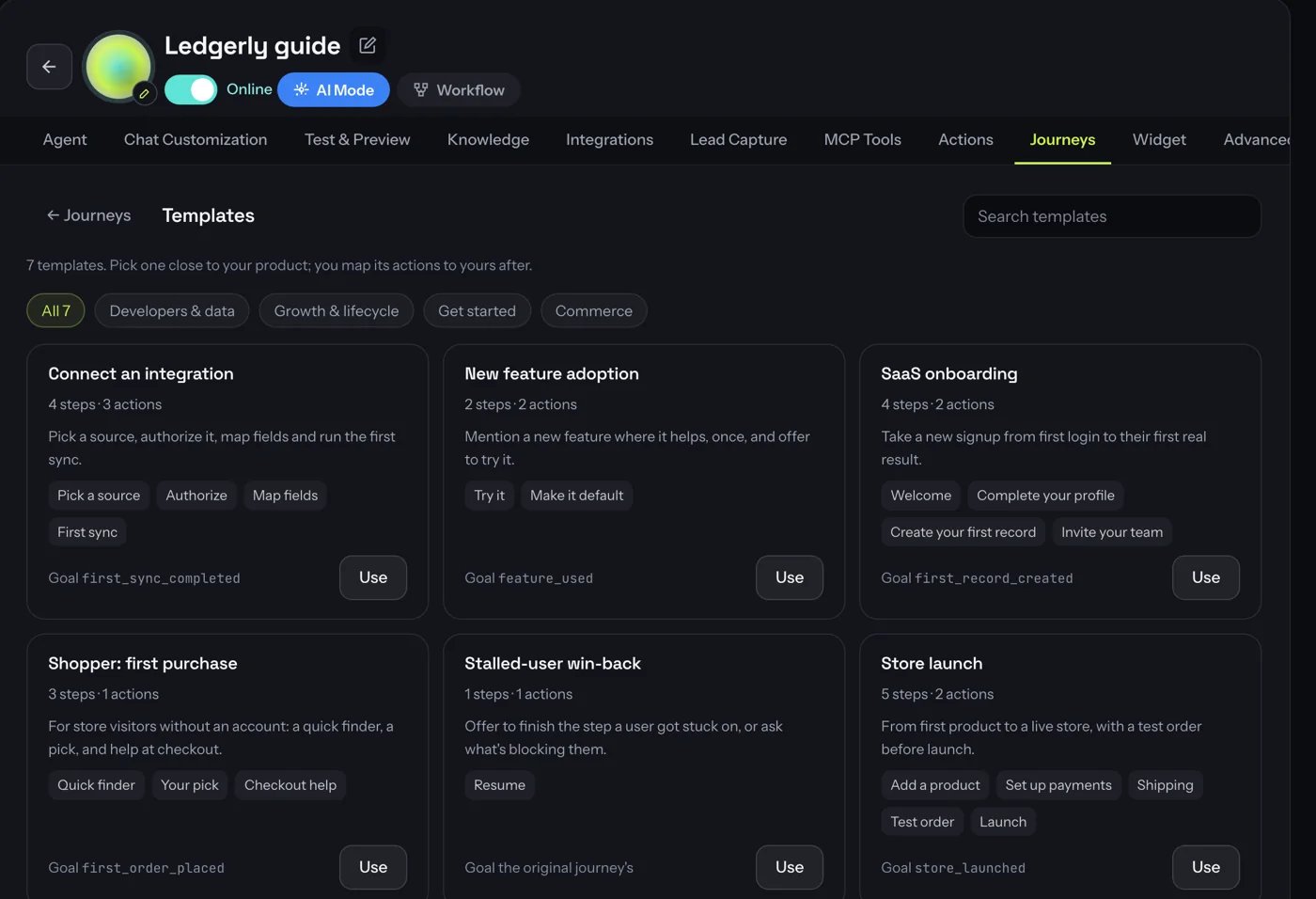
The editor
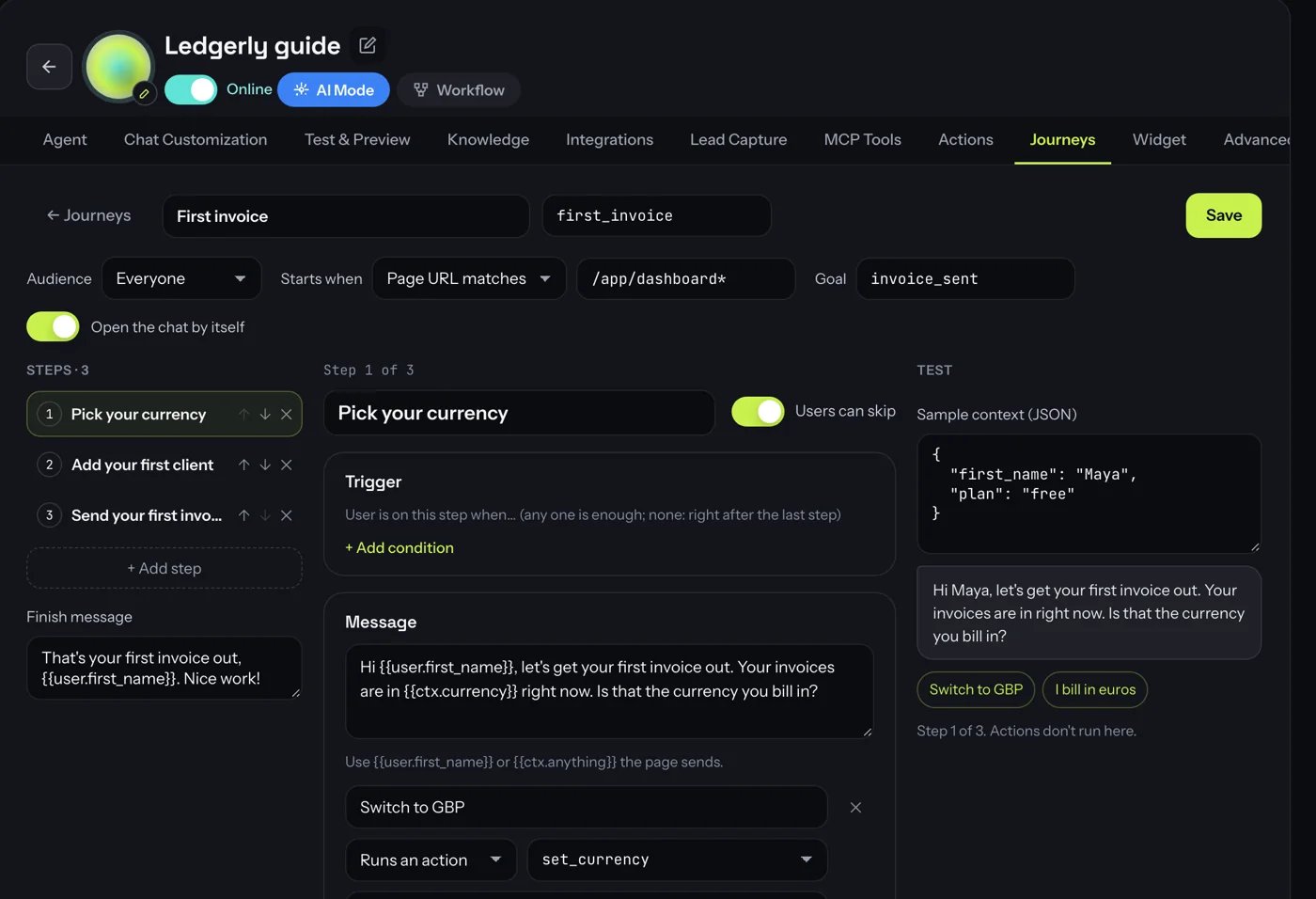
For each step:
The Test pane on the right shows the step’s message and replies for sample context, without
running any actions. When you’re happy with it, turn the journey live with the toggle in the
list.
What users see
- The guide
- Doing a step
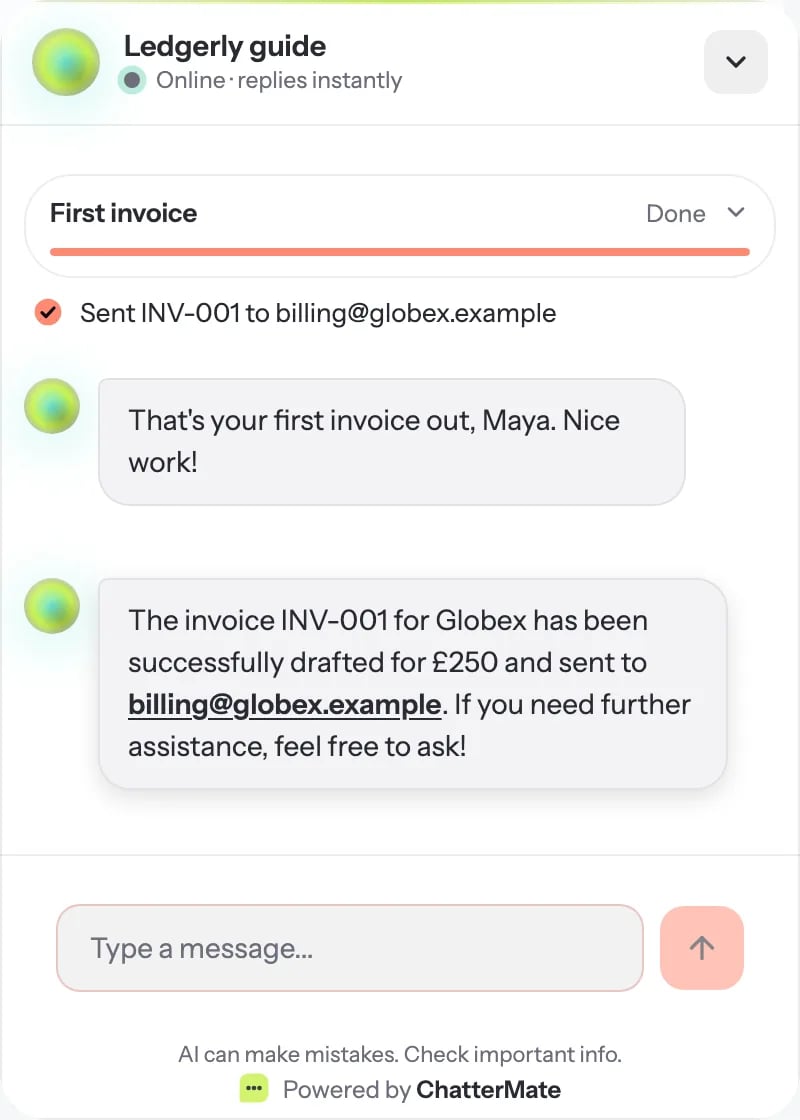
- Finished
A slim card pinned at the top of the chat shows the journey, the current step and progress.
Tapping it lists every step, with Skip this step and Hide guide.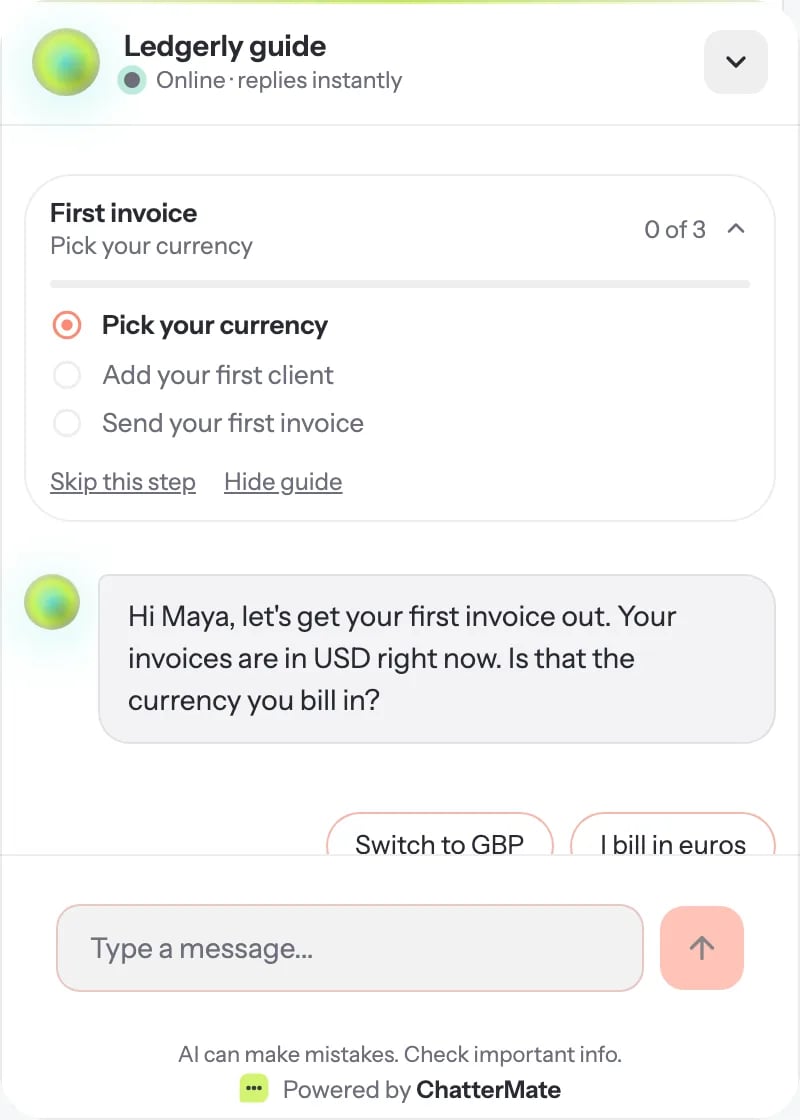
Which journey runs
A user is in one journey at a time. When several live journeys could start, the one higher in the list wins; use the arrows to reorder. A journey started from your code withstartJourney,
or by another journey’s Then, replaces the current one.
Editing a live journey takes effect straight away. Users on a step you deleted move to the next
one.
See where users stop
Click Funnel on a journey to see, for each step, how many users reached it, finished it, skipped it or dropped off, and the median time to finish.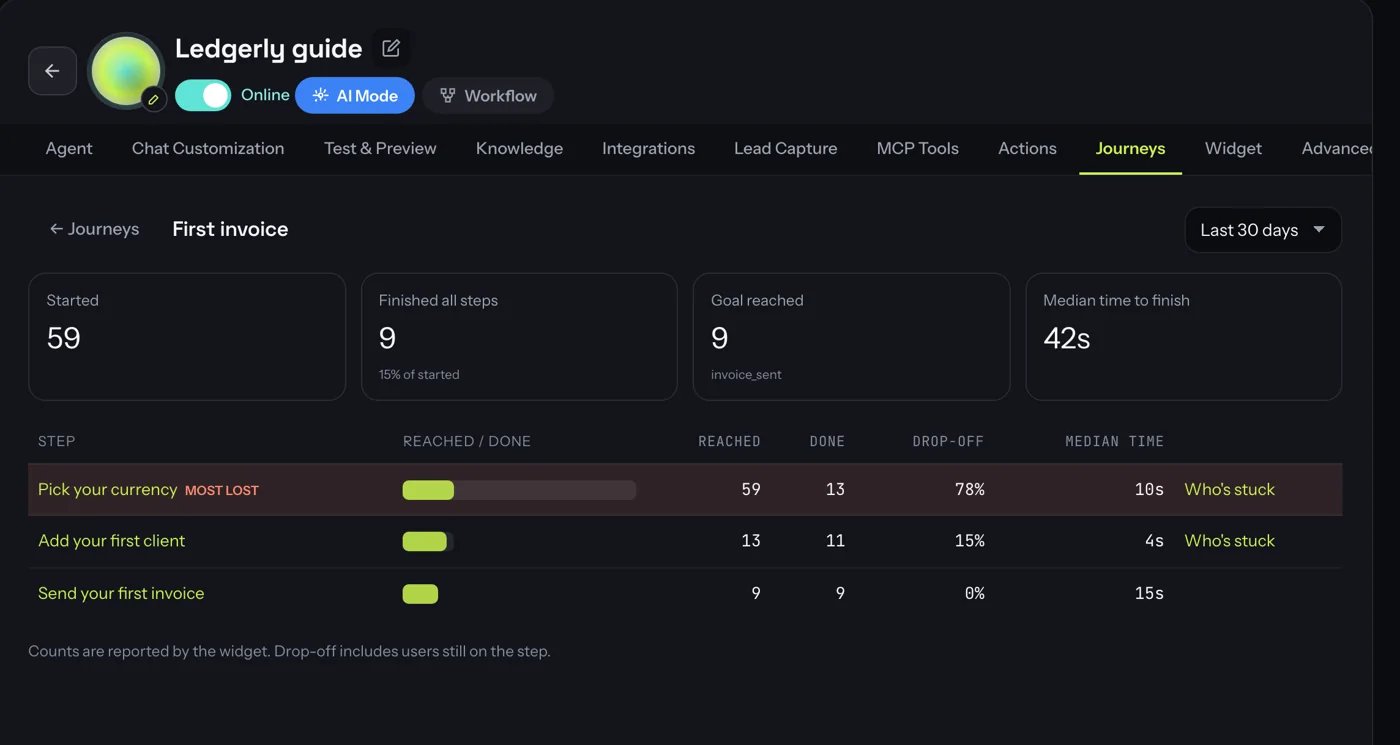
Set it up with the CLI or an AI assistant
Next steps
In-app actions
Give the agent the actions your steps use.
CLI
Script actions and journeys from your terminal.