

WhatsApp order updates for Shopify
Send customers a WhatsApp message when their order is placed and when it ships, and ask cash-on-delivery customers to confirm before you ship. Replies go to your AI agent, so “where is my order?” gets answered in the same chat. Everything is set up from the ChatterMate app inside Shopify admin, under Apps → ChatterMate → Automations → Order tracking. Setup takes about 10 minutes, plus Meta’s review time.WhatsApp comes with the Growth plan and up. Messages go out from your own WhatsApp Business number, under your store’s name. Meta bills your WhatsApp account for each conversation you start.
Before you start
You’ll need:- A Facebook account. You’ll pick or create your business portfolio while connecting.
- A phone number that can get a code by SMS or call, and isn’t on the WhatsApp or WhatsApp Business app. Use a new number, or delete that account from the app first.
- A card for WhatsApp’s conversation charges.
Step 1 — Connect your WhatsApp number
1
Open Automations
In Shopify admin, open Apps → ChatterMate → Automations. Under On WhatsApp, click Connect with Facebook. If Meta’s window doesn’t open, allow pop-ups for Shopify admin.
2
Sign in and choose your business
Sign in with Facebook and choose your business portfolio, or create one. ChatterMate fills in your store’s name, email, website, address and time zone, so check them and continue.
3
Create your WhatsApp Business account and profile
Choose or create a WhatsApp Business account, then set the display name customers will see (usually your store’s name) and your business category.
4
Add and verify your number
Enter your phone number and verify it with the code Meta sends by SMS or call. Then confirm the permissions and click Finish.
Step 2 — Add a payment method
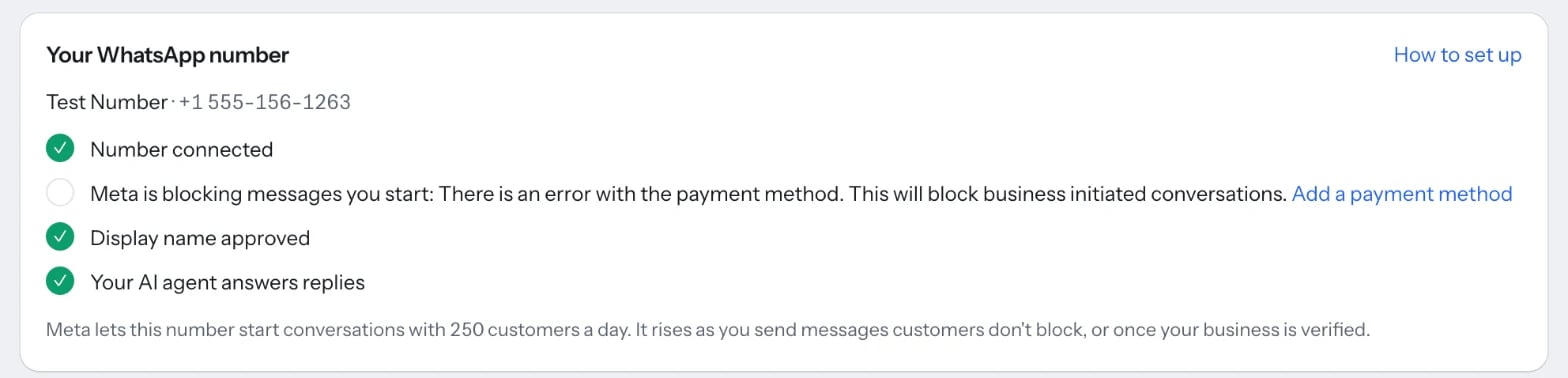
Meta won’t send messages your business starts until your WhatsApp account has a payment method. If the checklist says Meta is blocking messages you start, click Add a payment method. Then, in WhatsApp Manager, open Payment settings and add a card. The checklist turns green the next time you open the page.Step 3 — Wait for the display name review
Meta reviews your display name, usually within a day or two. Messages still go out while it’s in review. If Meta declines it, the checklist links to WhatsApp Manager, where you can change it.New numbers can start conversations with 250 customers a day. Meta raises the limit as you send messages customers don’t block, or once your business is verified. The checklist shows your current limit.
Step 4 — Turn on order updates
Switch on Order updates and choose which messages to send: Order placed, Shipped, with tracking, or both.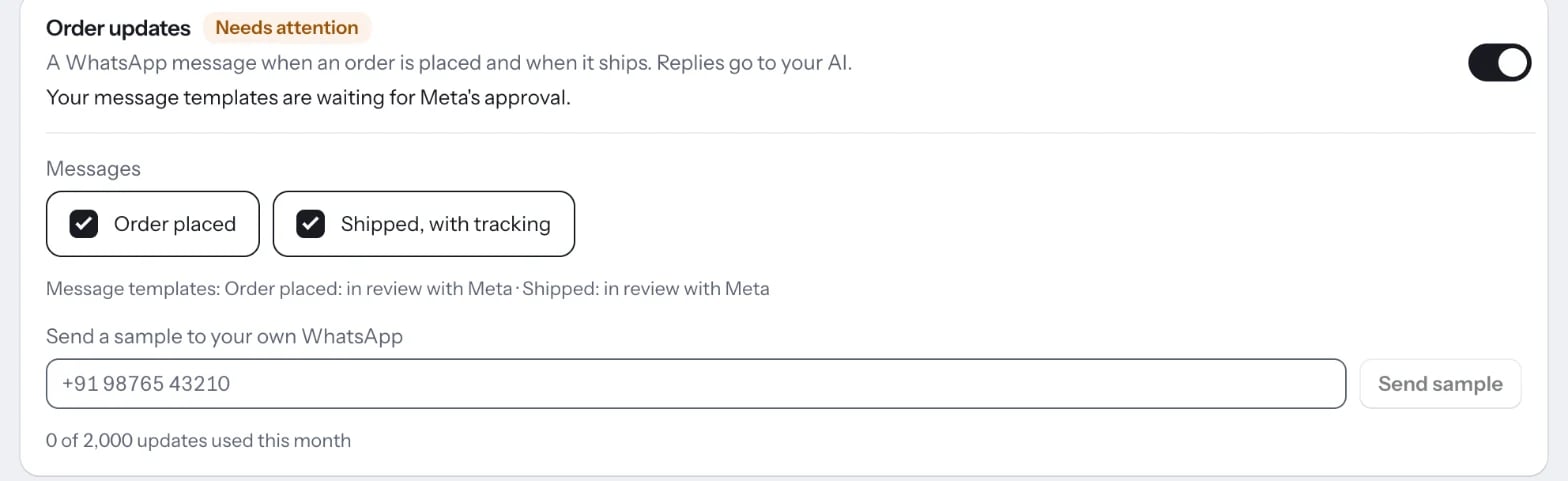
Step 5 — Add the opt-in box to your thank-you page
Customers only get WhatsApp order updates if they tick Send me order updates on WhatsApp on your thank-you page. Shopify only lets you place blocks on that page yourself, so when you turn on order updates or COD confirmation the card shows One more step: add the box to your thank-you page. Click Add the box to open the checkout editor. Under Apps, add WhatsApp order updates to the Thank you page, then click Save.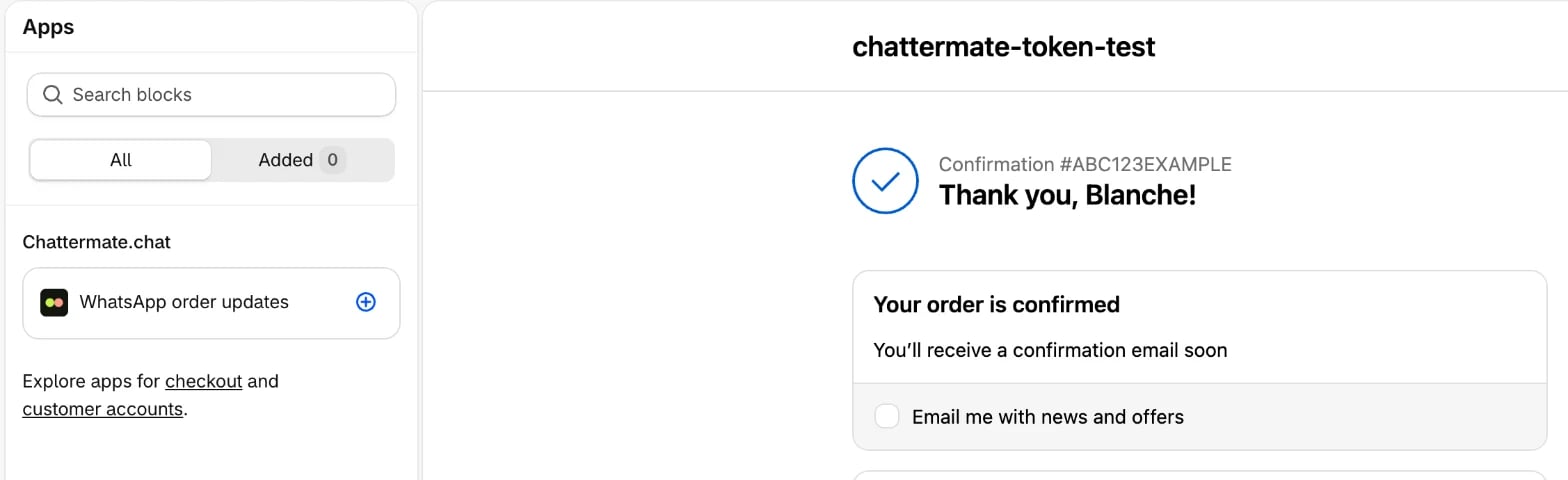
COD confirmation (optional)
For cash-on-delivery orders, ChatterMate sends a message with Confirm, Cancel and Change address buttons a few minutes after the order. A confirmed order is taggedcod-confirmed, so you can ship only those.

How sending works
- Only to customers who opted in. A tick on the thank-you page covers that order’s updates.
- Not at night. Nothing is sent between 9 pm and 8 am in your store’s time zone. Messages wait until morning.
- Replies go to your AI agent, and a teammate can take over from the inbox.
- Customers can reply STOP to stop all messages from your number, and START to get them again.
Troubleshooting
For the WhatsApp channel itself (templates, the 24-hour window, connecting from the ChatterMate dashboard), see WhatsApp.